Make the signal path understandable
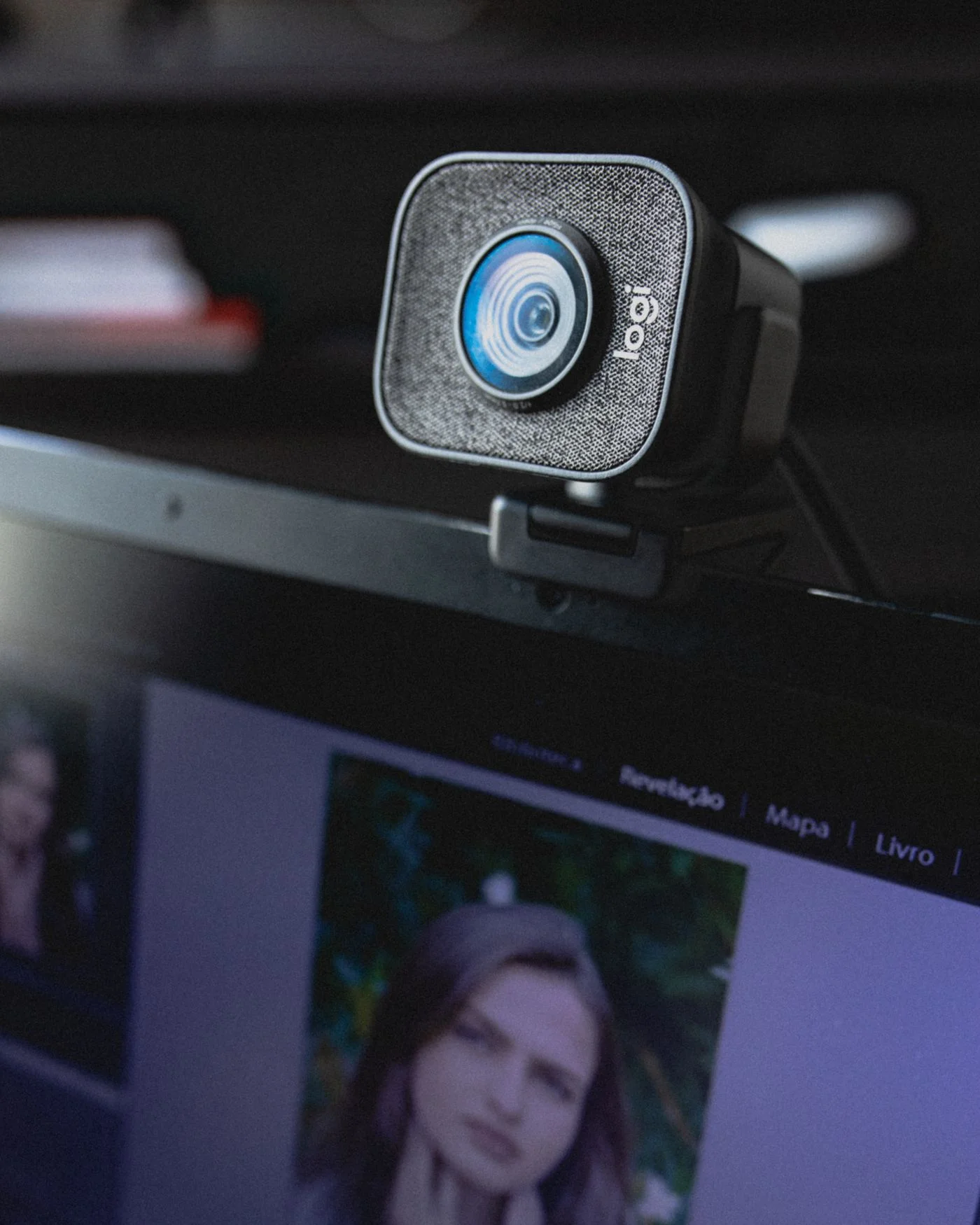
Audio output carries sound from the computer to headphones or speakers. Audio input captures your voice through a microphone. A headset combines both jobs, but the operating system and a calling application can still select different devices. First list what is connected, such as a laptop microphone, webcam, display and Bluetooth headphones. Each connection may introduce additional choices. For an initial test, disconnect unnecessary accessories where doing so will not disrupt other work. A manageable list prevents confusing a silent output with a faulty microphone and makes each change easier to observe and undo.
Test playback quietly
Select the intended output in sound settings. Begin at a low volume and play a short, familiar sound. Put on headphones only after setting a reasonable level. Check the system volume as well as any controls on the accessory and inside the application. A muted program can remain silent while other sounds work. A monitor connected by HDMI or USB-C may have added another audio output. Read the selected device name instead of repeatedly pressing the volume key and making an unintended output louder. Confirm where the sound actually emerges before moving on to the microphone.
Observe the microphone separately
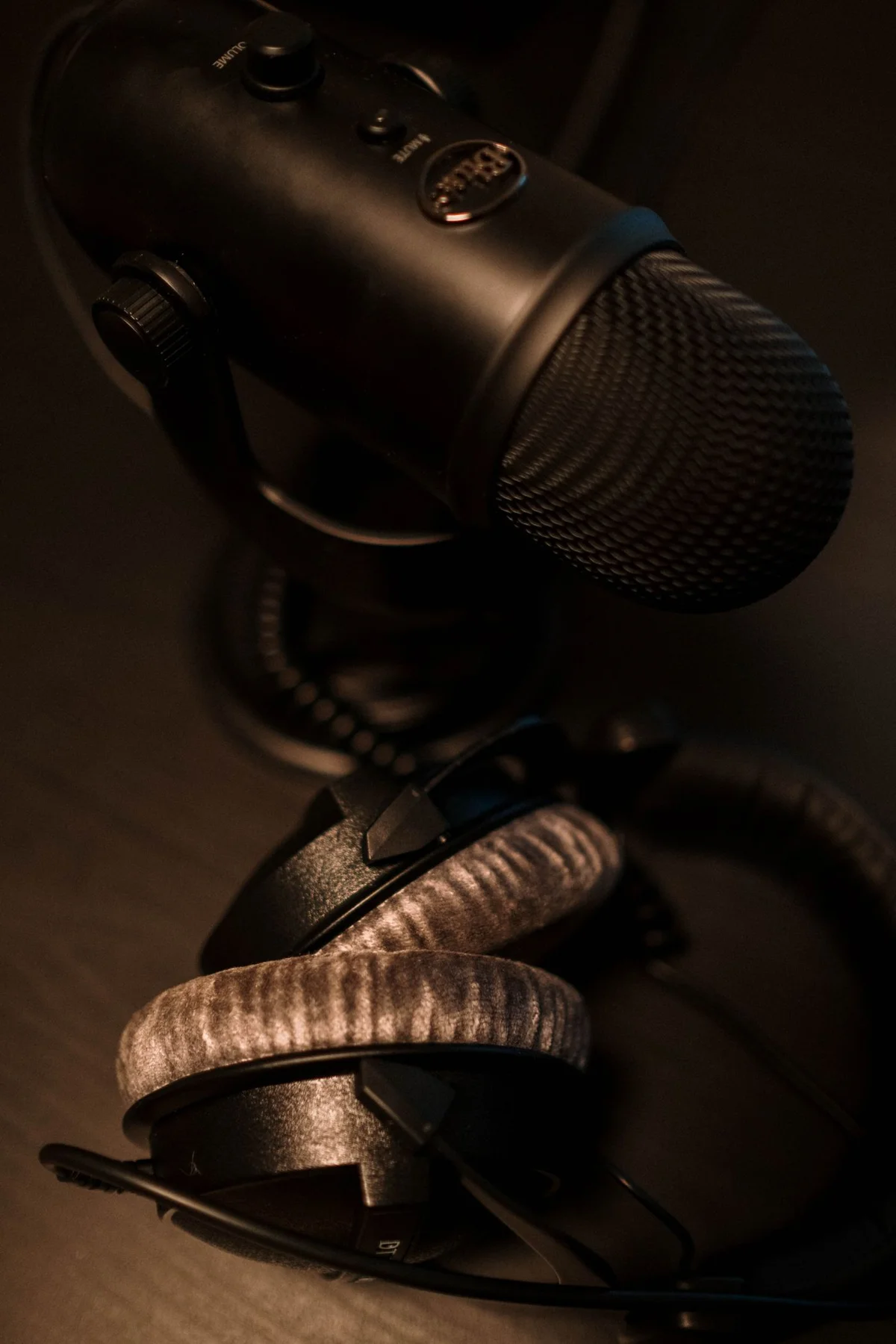
Next, select the intended input and speak at a normal level. An input meter or short test recording can show whether a signal arrives. Check a physical mute button on the headset and the application’s corresponding controls. If there is no signal, microphone permissions may also matter. Allow access only for the known application you intend to use. Position the microphone as its maker recommends; blowing into it is not a useful test. If recording is available, listen back at a moderate volume and focus on intelligibility rather than trying to obtain the largest possible meter reading.
Check inside the calling application
Many applications manage input and output in addition to system settings. Before the call, open the application’s device selection and inspect both fields. Choosing the default device can be convenient, but it may follow a later system change. An explicitly chosen source is easier to trace while that device remains connected. Use a built-in test function where available, or arrange a brief test call. With Bluetooth, behaviour can change depending on the device and audio mode when its microphone becomes active. Do not therefore judge calling performance solely from the sound quality of music played beforehand.
Consider echo and the room
Speakers can feed the other person’s voice back into the microphone, creating echo or feedback. Properly configured headphones can avoid that path. If several devices in the room join the same call, inspect their active microphones and speakers too. Keyboard noise, a fan or poorly positioned cabling may also affect the recording. Change one thing and repeat the same short test. Note the device names that worked. After moving between a desk and another location, you can then quickly confirm that both audio paths still point to the intended equipment instead of assuming the previous selection remained unchanged.
Check playback, then recording, then both selections inside the calling application.