Use ordinary work as the benchmark
Before choosing, consider what you actually do with a mouse. Selecting text, hitting spreadsheet cells and switching between windows differ from precise drawing or gaming. Note whether the mouse stays at a desk or travels each day. Size, weight and connection matter when carrying it; extra buttons or a different shape may be more useful at a permanent workstation. A large number on the packaging means little without a connection to these tasks. Begin with two or three requirements that would make a real difference, rather than trying to include every available feature simply in case it becomes useful.
Try the shape in your own hand
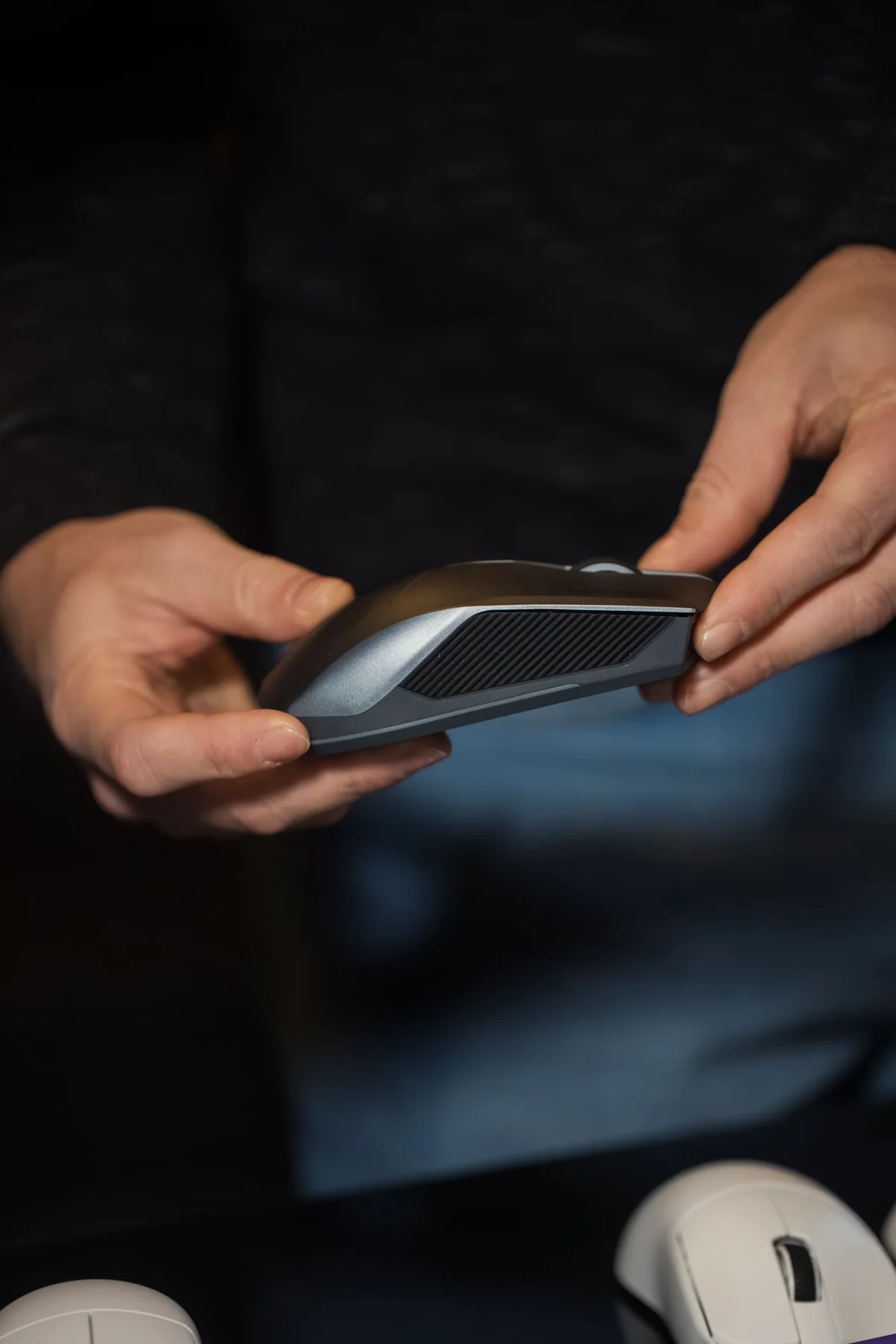
If possible, rest your hand on a demonstration unit and move it over a suitable surface. Can you reach the main buttons without noticeably stretching? Can you operate the wheel without repeatedly repositioning your whole hand? Try lifting and replacing the mouse too. Large, small, flat and strongly curved bodies feel different. The word ergonomic does not guarantee individual suitability or a medical benefit. Do not choose an unfamiliar shape solely because of its advertising. Persistent discomfort calls for appropriate professional advice and a look at the whole workstation, rather than repeatedly buying different accessories without understanding the problem.
Consider connection and power
A wired mouse needs an appropriate port and enough free cable for movement. A wireless model may use Bluetooth or its own USB receiver; check what the computer supports. A small receiver occupies a port and is easy to lose while travelling. Bluetooth avoids that receiver but requires deliberate pairing with the intended computer. For wireless products, consider batteries or charging arrangements and the maker’s instructions about use while charging. Also check whether special functions need additional software and whether that software supports your operating system. Basic pointer movement and advanced features do not always have identical compatibility requirements.
Compare using the same short task
Try each candidate with a consistent exercise. Select some words, move a window and scroll through a longer page. Set a reasonable pointer speed first so an unsuitable default is not mistaken for a poor mouse. Check the surface as well: highly reflective or unsuitable materials can affect tracking. Notice accidental presses on side buttons. An extra button helps only if you can reach it reliably and understand its action. After the trial, record specific observations such as a difficult-to-reach wheel, rather than only a favourable or unfavourable first impression that is hard to compare later.
Introduce the new mouse gradually
Start with basic functions and assign extra buttons later if a real need emerges. Keep pairing, receiver and charging information somewhere accessible. On shared computers, personalised button assignments should remain understandable to other users. Arrange the desk so the mouse and keyboard are within easy reach and the cable cannot catch on nearby objects. Reconsider the choice after several normal working sessions. A mouse can make control easier, but it cannot replace suitable breaks or a sensibly arranged work surface. Evaluate how the whole setup works together instead of expecting one accessory to solve every difficulty.
Compare shape, connection and control through the same everyday tasks.