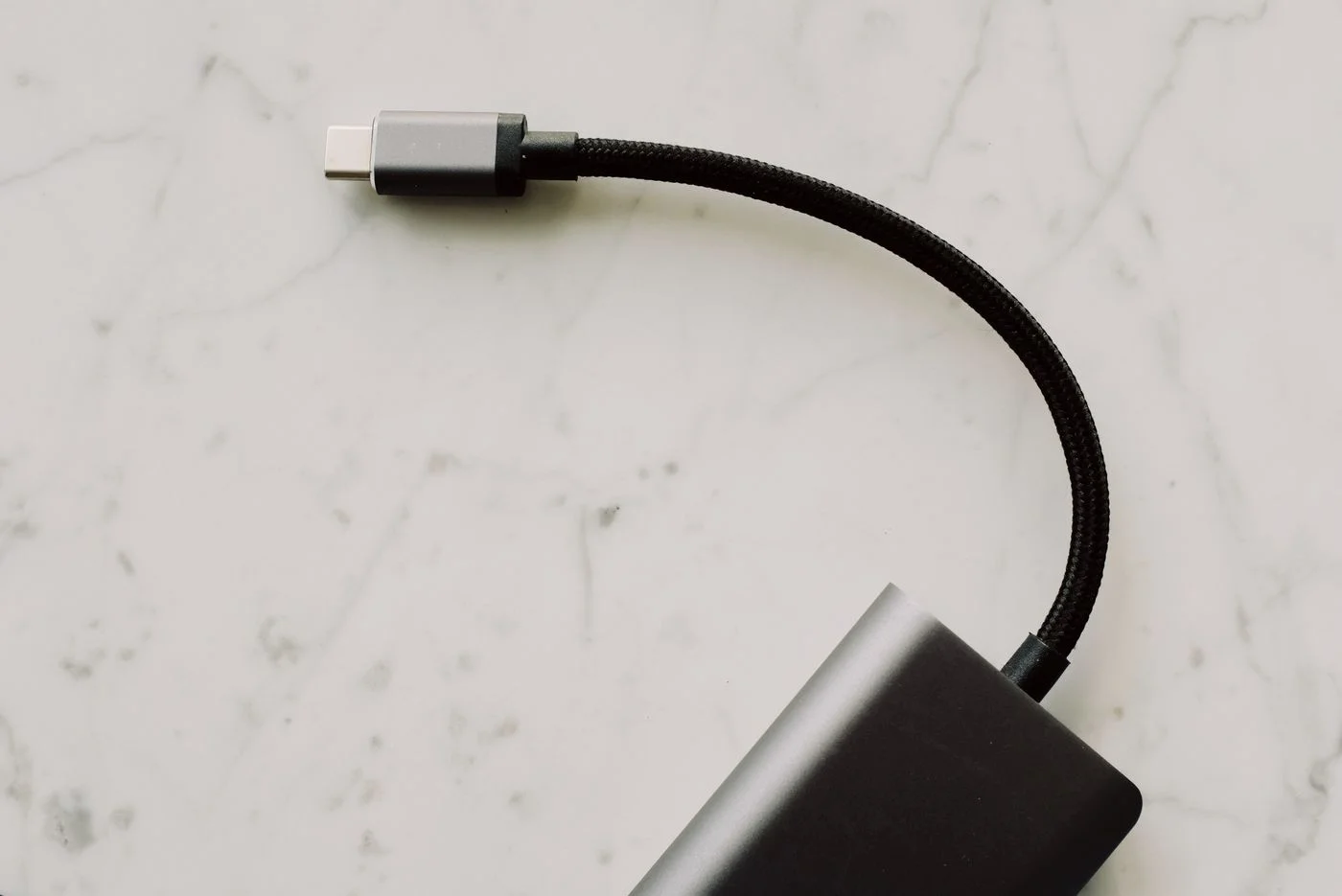
Separate three different jobs
When you see a USB-C socket, ask three separate questions: must it carry data, provide power or send a picture to a display? Those jobs can overlap, but they do not always. A cable used to charge a phone is not automatically suitable for a high-resolution monitor. Even two USB-C ports on one laptop can have different capabilities. Describe the intended job before shopping for a cable. Connecting an external screen at a desk is a more useful starting point than asking for a generally good USB-C cable without explaining what it needs to do.
Read the specifications at both ends
Find the laptop’s technical specifications and those of the accessory. For a monitor, check whether the chosen laptop port supports video output and what connection the display expects. For storage, identify a data-transfer mode supported by both devices. The fastest advertised capability of one product does not describe the performance of the complete connection. The cable and any hub must support the task as well. A practical comparison has three lines: the computer port, the cable’s stated capabilities and the accessory’s requirements. Missing information calls for clarification from the manufacturer, rather than an assumption based on appearance.
Charging requires appropriate power
For charging, check the manufacturer’s requirements for the power adapter, cable and usable port. USB Power Delivery allows suitable equipment to negotiate power, but the available supply must still meet the device’s needs. An adapter that works well for a phone may provide too little power for a busy laptop. Depending on the equipment, charging may be slow or a warning may appear. A hub with charging passthrough can also use some power itself. Follow the requirements stated for your particular devices. Avoid damaged cables and never try to maintain an unreliable connection by holding a plug under pressure.
Make the first test unambiguous
Connect a new accessory directly to the intended laptop port first. Use a cable documented as suitable for the task. With a monitor, establish a picture at a supported setting before adding other screens or accessories. With a drive, copy a disposable test file and open the resulting copy. If the connection fails, change one element at a time, such as the cable or port. Changing several things together makes the result harder to interpret. Write down the working combination, including the cable, instead of concluding that USB-C works in general and forgetting the details that made it work.
Organise cables by their proven purpose
Keep ordinary charging cables distinguishable from those needed for demanding storage or display connections. A small label can describe a tested purpose without claiming an unverified maximum speed. Leave the plugs and necessary markings uncovered. If you add a docking station later, check the entire connection again: a successful direct connection does not guarantee identical capabilities through a dock. Multiple displays can encounter additional limits imposed by the computer itself. A clearly identified cable and the relevant product documentation are more useful than a drawer of outwardly identical cables whose actual capabilities nobody can remember.
The oval connector promises no particular performance; check every component against the task.