Separate three different states
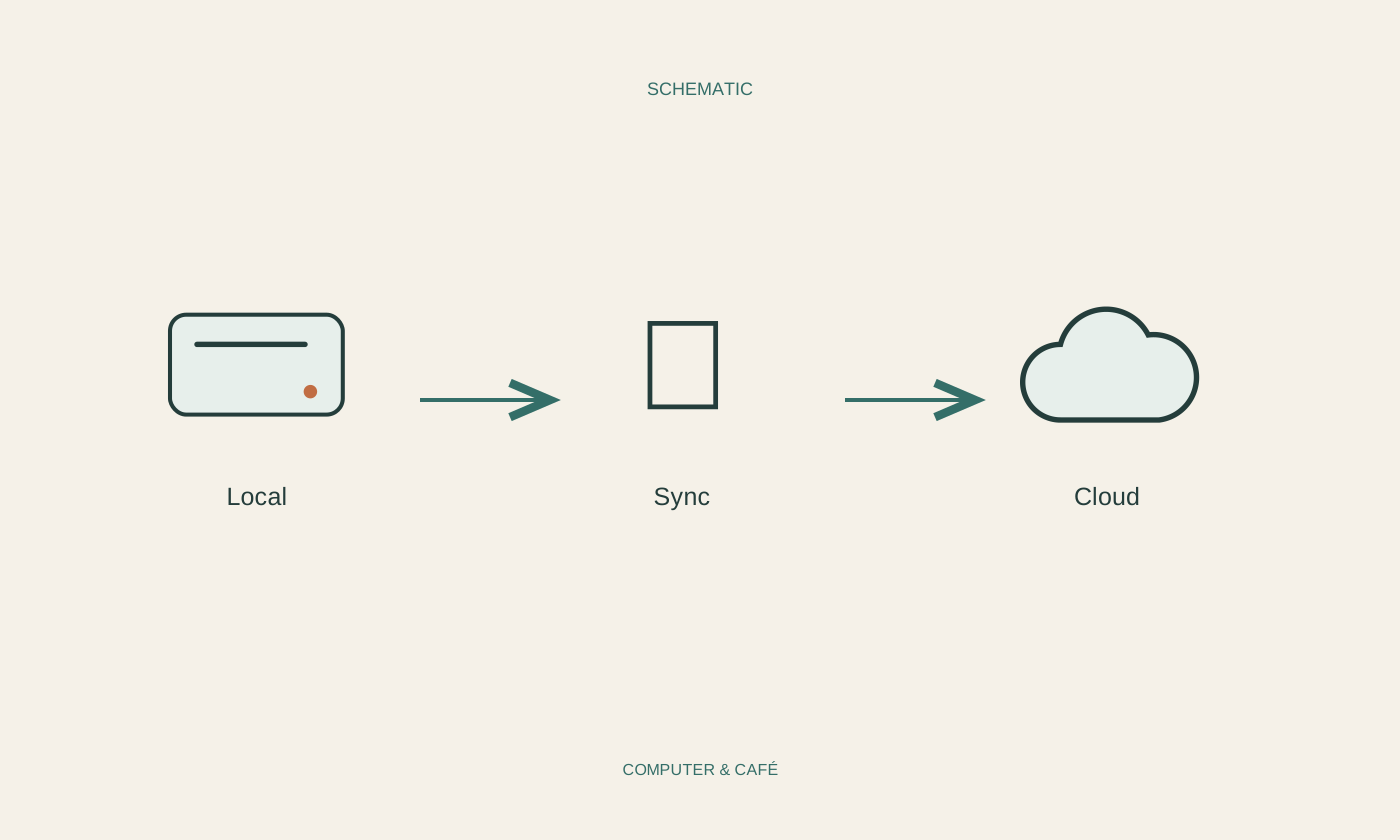
A file may exist only on your computer, be synchronised with an online service, or be available only online. In the last case, the file manager may still display its name and icon. Opening it downloads the contents. The visible entry is then a placeholder rather than a complete local copy.
The symbols for these states differ between services and operating systems. Read the explanation in the help for your particular service instead of guessing what a cloud or tick means. Check the folder path as well. A similarly named folder on the desktop can have a different location from one inside the synchronised area.
For everyday use, ask a practical question: could I open this file right now without internet access? If you are unsure, test with an unimportant example. Save open work first, explicitly make the file available offline if necessary, and then check it with the connection disconnected.
Synchronisation is not just another copy
Synchronisation coordinates changes between devices and a service. This is convenient, but may also carry a deletion or accidental edit to the other locations. A synchronised folder should therefore not be treated as an independent backup without checking what protection is actually available.
Recovery, deleted-item storage and previous versions depend on the service, account type and its rules. Check those features before relying on them. Moving a file elsewhere inside the same synchronised area does not automatically create a separate backup. What matters is whether subsequent changes remain connected.
Distinguish freeing space from deleting files
Some services offer a command that removes only the local copy while keeping the online content. This is different from ordinary deletion. Read the description of the specific command and first confirm that the file has finished uploading. An incomplete or failed upload is a poor starting point for clearing space.
If you need storage, begin with a few unimportant example files. After the change, check both their local status and access through the service. Keep a separate, understandable backup of important documents too. Assuming that everything must still exist somewhere in the cloud is not very helpful when a file is missing.
Check deliberately before travel or a device change
Before travelling, mark the documents you actually need for offline use and wait for downloads to finish. Then disconnect and check that the complete content opens, not merely a preview image. Include attachments, pictures or linked files that a document depends on. They may need their own offline copies.
Before moving to another computer, review storage locations and accounts. Which files exist only on the old machine, which are online, and which are in both places? Open several important examples on the new device. Do not erase or reset the old system until you have checked the transfer and an independent backup. If the new computer has limited storage, decide which files must remain available offline.
Check the storage state behind the filename. A visible entry proves neither offline access nor an independent backup.