Trace an alert back to its sender
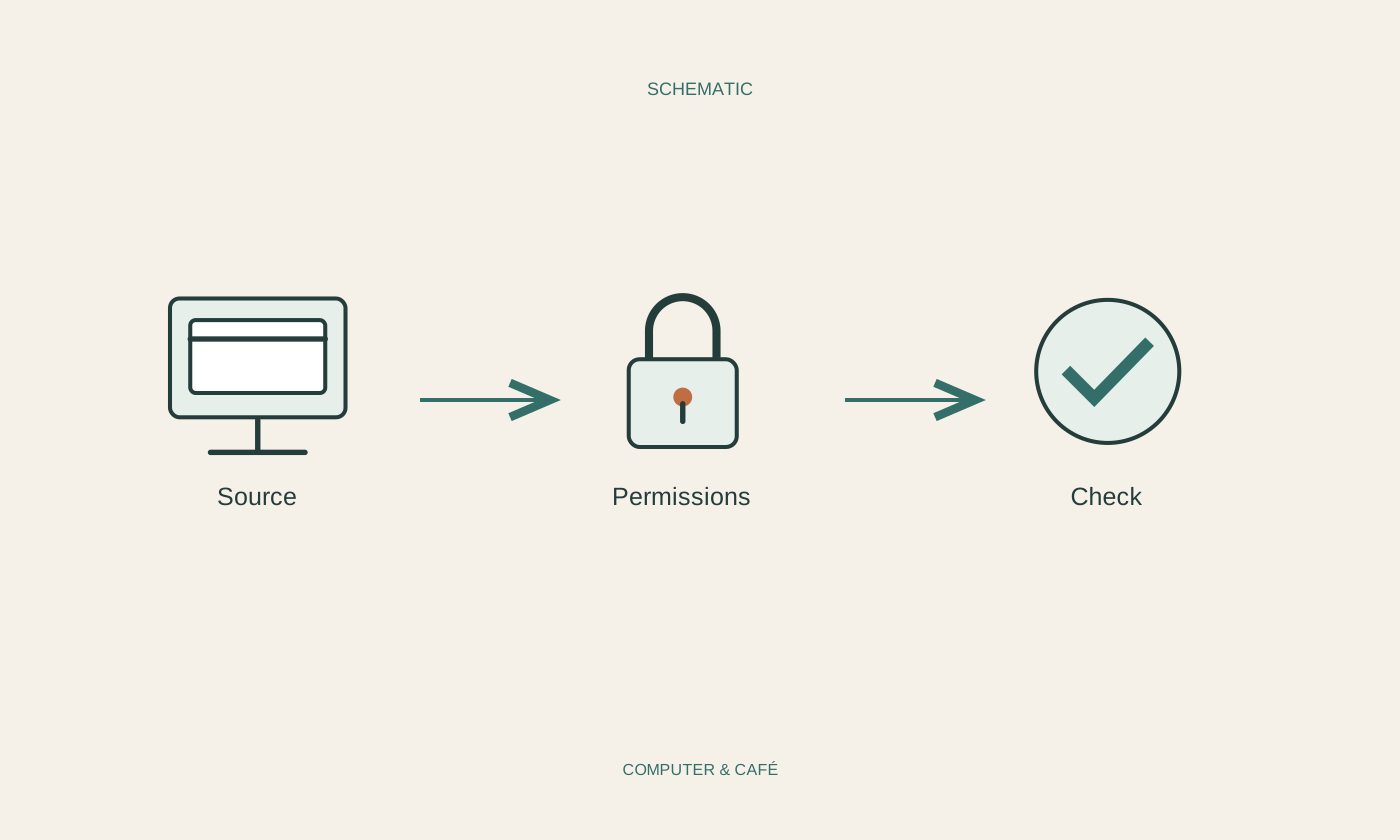
When a notification appears, first read the name of the application or website sending it. Similar icons can be misleading. A promotional browser notification is different from a calendar reminder, even when both appear in the same corner of the screen.
For a day, make a note of only the alerts that actually interrupt you. This gives you concrete examples instead of a long list of unfamiliar settings. One website may be responsible for most of the distraction, in which case there is no need to change every application at once.
Do not respond through a notification’s link if it demands immediate payment or repairs. Open the relevant application or provider independently. An alert can be a website message rather than an operating-system warning, even when it is designed to look official. Identifying the sender is useful for both attention and trust.
Sort by usefulness rather than volume
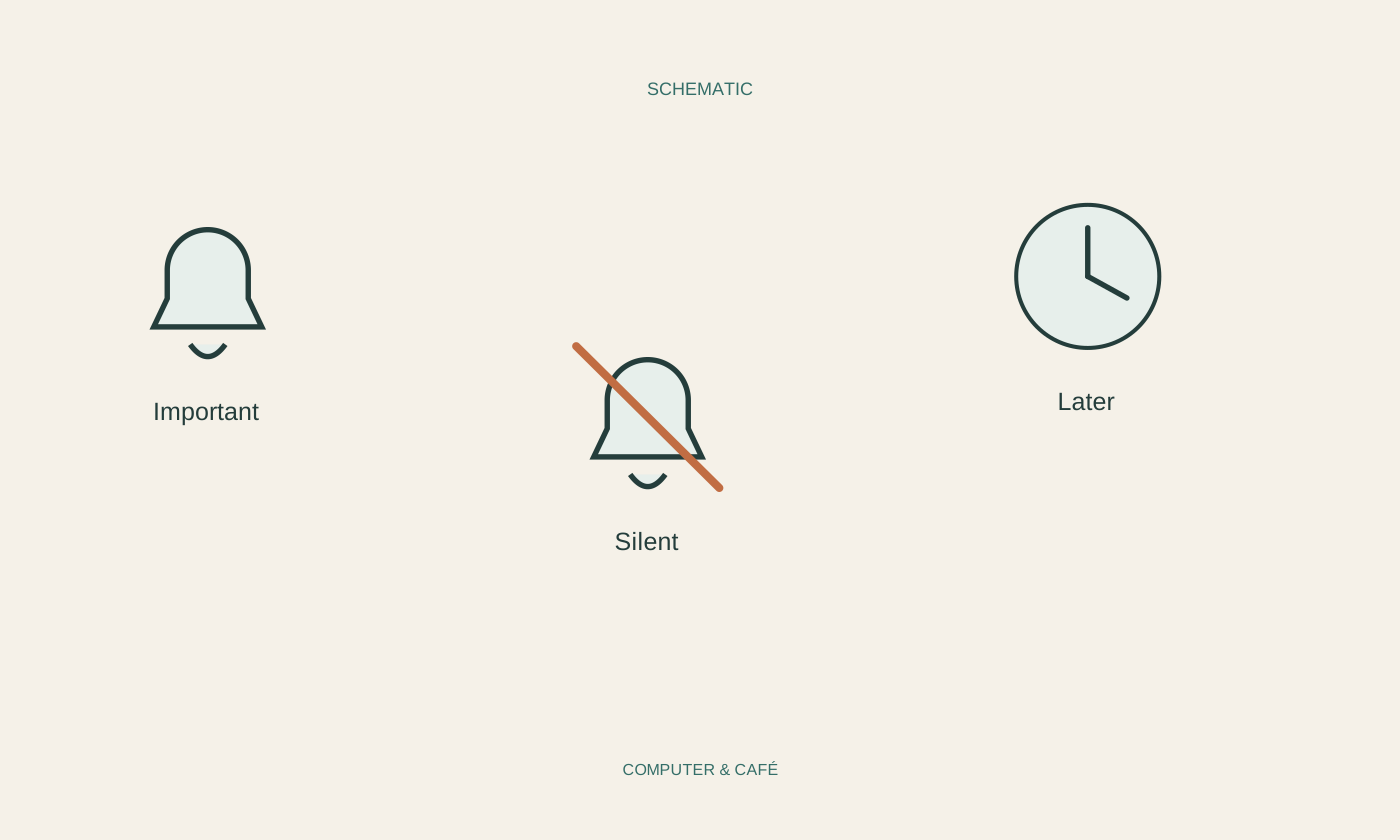
Divide your examples into three groups: useful immediately, useful later and unnecessary. An approaching meeting might belong in the first group, a completed background task in the second and a daily promotion in the third. Decide around your actual work rather than the prominence an application gives its messages.
Many applications separate message types within their own settings. You may be able to disable promotions while keeping direct messages. The operating system often provides additional controls for banners, sounds and previews. The arrangement varies by application and version, so start with a small, understandable set of changes.
On a screen other people can see, preview text deserves particular attention. It may reveal a private message before you open the application. Check whether you can hide the preview without losing the whole alert. Then send an unimportant test message to see what remains visible on screen.
Use quiet periods with deliberate exceptions
For focused work, a temporary quiet or focus mode may be more useful than permanently disabling every notification. Choose a manageable period and decide which contacts or applications should still be able to reach you. The available exception settings differ between systems.
Do not assume that an important reminder will break through a quiet mode. Create a harmless test appointment with a reminder due soon and observe the result. Also check whether the mode affects only this device or is shared with other devices signed into the same account.
Review after a few days
Keep the new arrangement for several days. If something important is missing, return to the settings for that specific application. If nothing useful has disappeared and the screen feels quieter, there is no need to make more changes. A workable selection does not need fresh optimisation every morning.
Give newly installed apps and websites the same brief consideration. Allow notifications when you can explain what they will help you do. If another device already shows an important alert reliably, consider whether it also needs to appear on every other screen. Reducing duplicates may help more than simply turning down the sound.
Identify who sends the distracting alerts, then adjust their content or timing. Test any exceptions you rely on.