Describe what looks wrong
Compare text in a system menu with similarly sized text in two applications. If everything looks soft, investigate the display and connection first. If only an older program is affected, start with that program. A low-resolution picture containing text will remain blurry even when the monitor is configured correctly.
Also distinguish blur from text that is simply too small. Tiny lettering may need enlargement rather than a supposed sharpness repair. Note whether the change followed a new monitor, dock, cable or display setting. Knowing when the problem began gives the following checks a direction and avoids changing unrelated settings in search of an improvement.
Check the intended resolution
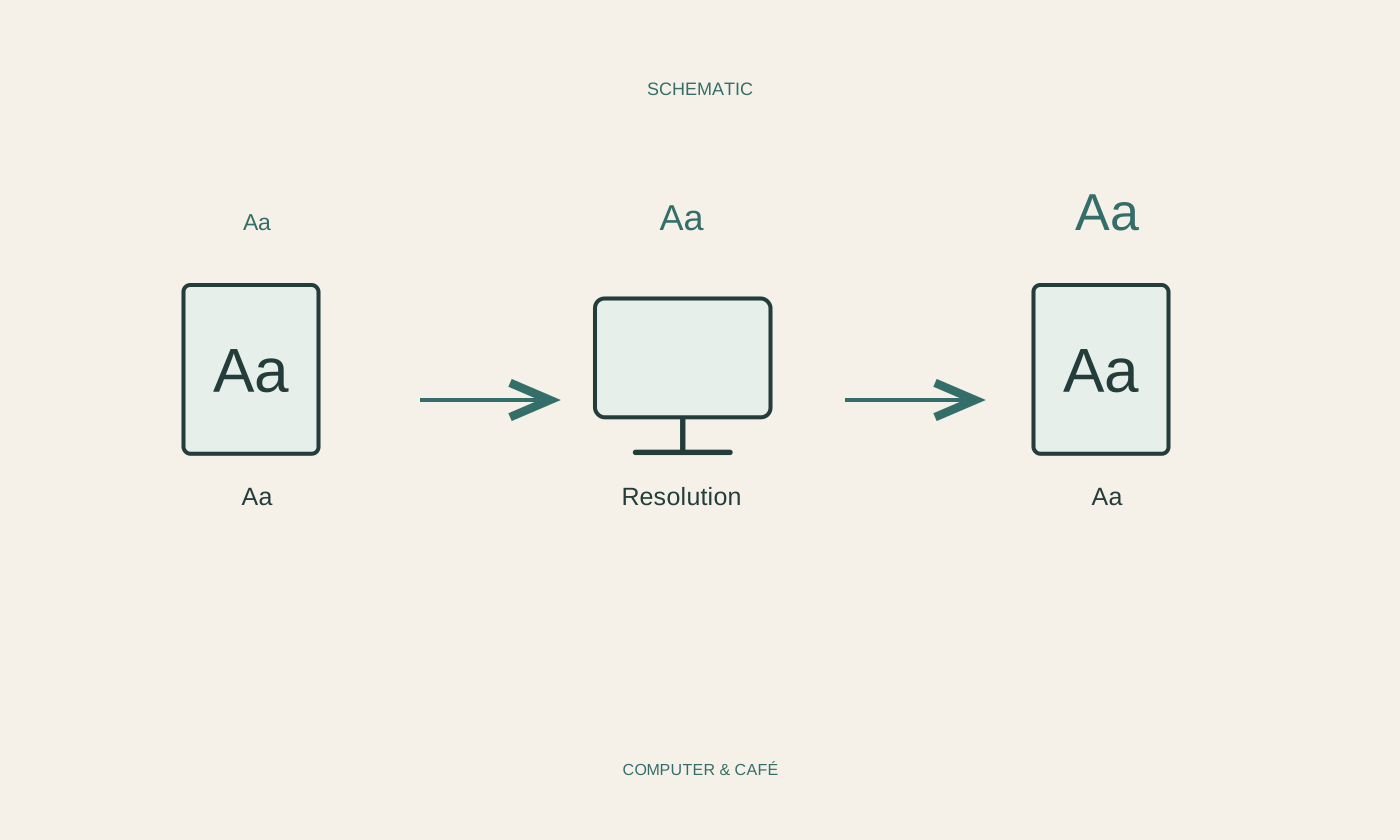
Select the affected screen in display settings. With several monitors, it is easy to change the laptop panel accidentally while looking at an external display. Compare the offered or recommended resolution with the manufacturer's specification for the exact monitor. Lowering resolution can enlarge everything but often makes text appear less precise.
Change only that setting initially and compare familiar text again. If the expected resolution is unavailable, consider the entire connection: computer, port, adapter, dock and cable must support the required output. A different connector shape does not guarantee a particular resolution. Consult the relevant device specifications before buying replacement accessories that may not address the limitation.
Use scaling to adjust reading size
If the intended resolution makes lettering too small, try an appropriate scaling or text-size setting. You do not necessarily need to reduce the whole screen resolution to make reading comfortable. Work in small steps and inspect menus, dialog boxes and your usual applications. A pleasantly enlarged web page is not much help if important controls elsewhere are cut off.
Different monitors may reasonably need different settings. Move the same window between them and observe what changes. Some applications only pick up an adjustment after being restarted or after you sign in again. Save your work before taking either step, then compare the same material so that the result is meaningful.
Separate the document from the application
Set the affected document's zoom to a known value and compare ordinary text with inserted images. If only a scanned page looks soft, the source image may be the limiting factor. Enlarging it does not create additional detail. Try another document in the same application to find out whether the problem follows the file.
For one consistently affected application, consult its official display and scaling guidance. Install relevant updates from a trusted source when they are available for your version. Avoid speculative system changes from forum posts that you cannot reverse. A screenshot can help support understand whether you mean fuzzy lettering, distorted icons or an entire interface that looks wrong.
Investigate the connection after the settings
If the problem remains, compare another suitable port or a cable known to support the intended display. Change one part of the connection at a time. On monitors with extensive picture controls, excessive sharpening can create visible outlines around letters. Use the model's manual instead of moving every picture slider simultaneously.
Once the image is readable, keep a brief record of resolution, scaling and connection. It makes the working arrangement easier to restore after moving the computer. If the display also looks wrong with another suitable source, give the manufacturer the model number and your comparison results. That is a stronger starting point than an unsupported assumption that the monitor needs replacing.
Separate whole-screen blur from an application problem, then adjust resolution and reading size independently.