Separate disconnection from a slow service
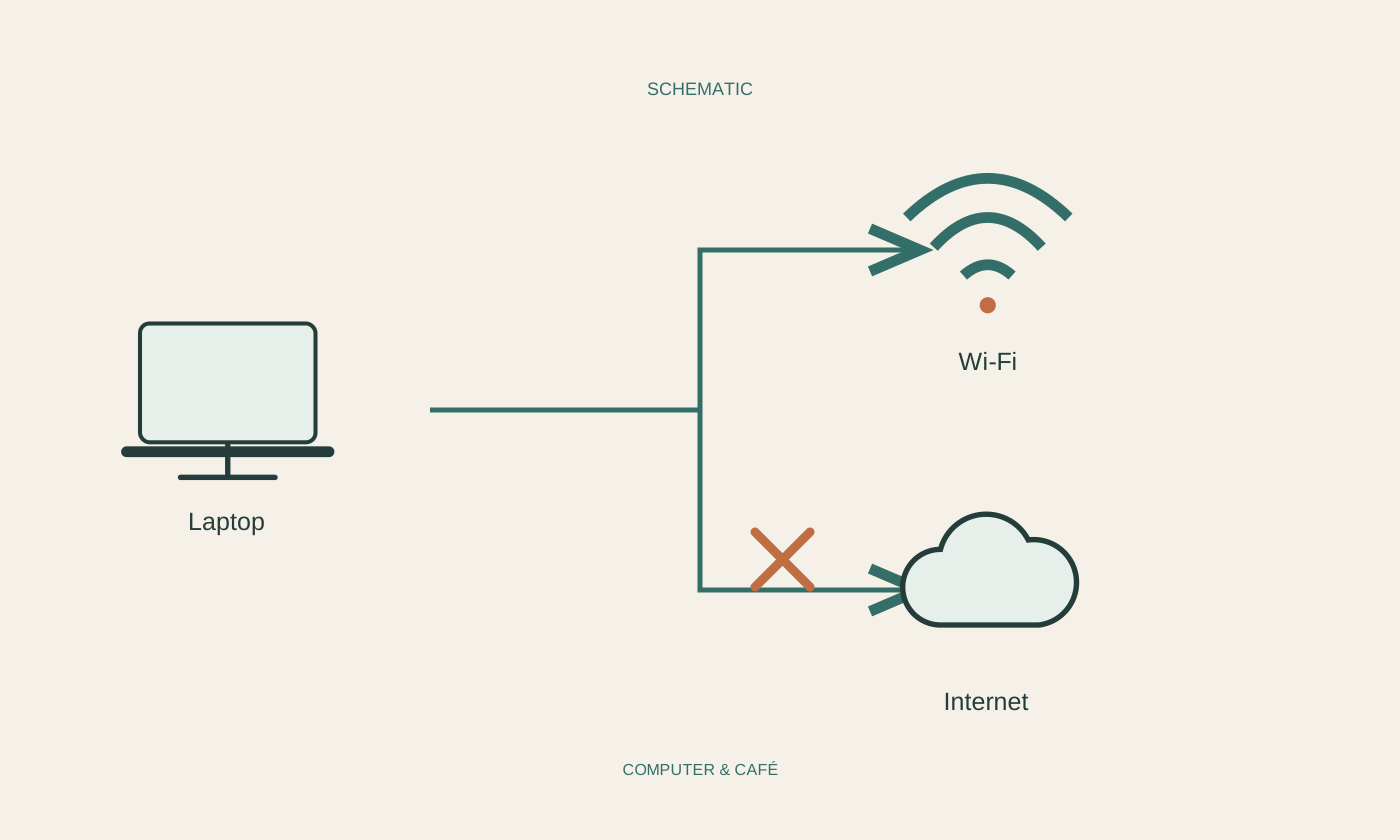
Record what actually stops working during an incident. Does Wi-Fi disconnect, remain visibly connected or affect only one application? Try another known website and, where available, another device on the same network. One unavailable service does not prove a wireless fault. Note the approximate time, location and duration. A connection with waking the computer or moving rooms can matter too. A short record across several incidents is more helpful than making many immediate changes after the first failure and later being unable to tell which change influenced the behaviour you were trying to investigate.
Test location as one variable
Use the same computer in another suitable position, preferably nearer the router, without changing network settings at the same time. Repeat the same task and observe reliability. Walls, furniture and other surroundings can influence the wireless path. A stronger icon alone does not confirm uninterrupted service. If the problem occurs only in one position, record that distinction. Do not simultaneously move the router, because you would lose track of which movement helped. Also check whether the device unintentionally switches between similarly named networks or several remembered connections rather than remaining on the intended one.
Compare other devices systematically
A shared cause becomes more plausible when several devices fail simultaneously than when only one computer struggles. That remains a clue, not a final diagnosis. Compare the same online task at a similar time where possible. A phone may silently use mobile data and appear to demonstrate working Wi-Fi; check the actual route during the comparison. A wired device can additionally help distinguish the wireless segment from the rest of the network. Record these differences carefully. Avoid saying the internet works everywhere if the devices actually used different connections or tested different online services.
Perform simple maintenance transparently
Check official updates for the computer and router using their respective instructions. Save work and consider other users before restarting network equipment. An ordinary restart differs from a factory reset. The latter can remove access details and configuration, so it is not a harmless first test. Do not randomly change wireless channels or other technical settings either. Record the previous state and follow current manufacturer guidance. If an update or restart appears to help, continue observing the original task before assuming a permanent solution. A brief successful connection after a change is useful evidence, but not the whole test.
Use the pattern to choose the next step
After several observations, summarise whether interruptions follow a location, device, time or particular activity. Give the provider or support team model information, messages and comparisons already made. Do not publish Wi-Fi passwords or administration credentials. For an important appointment, a known working wired connection may be a practical temporary option if available. Treat it as a workaround, not proof that wireless service has been repaired. Keep your notes until the original situation works reliably on repeated occasions. This measures improvement against the same problem that prompted the investigation rather than against an unrelated easier task.
Record time, location and affected devices, then compare one part of the connection at a time.