Avoid adding more jobs
Do not press Print repeatedly when the first page fails to appear. Several identical jobs may accumulate and print unexpectedly later. Open the operating system’s printer overview and see which device received the job. With similarly named entries, it may have gone to an old or disconnected printer. Record the name and displayed status. At the same time, inspect the actual printer’s display or lights. Missing paper or an open cover is a different starting point from a job that never reaches the device at all, so gather both observations before deciding which setting to change.
Check the basic device condition
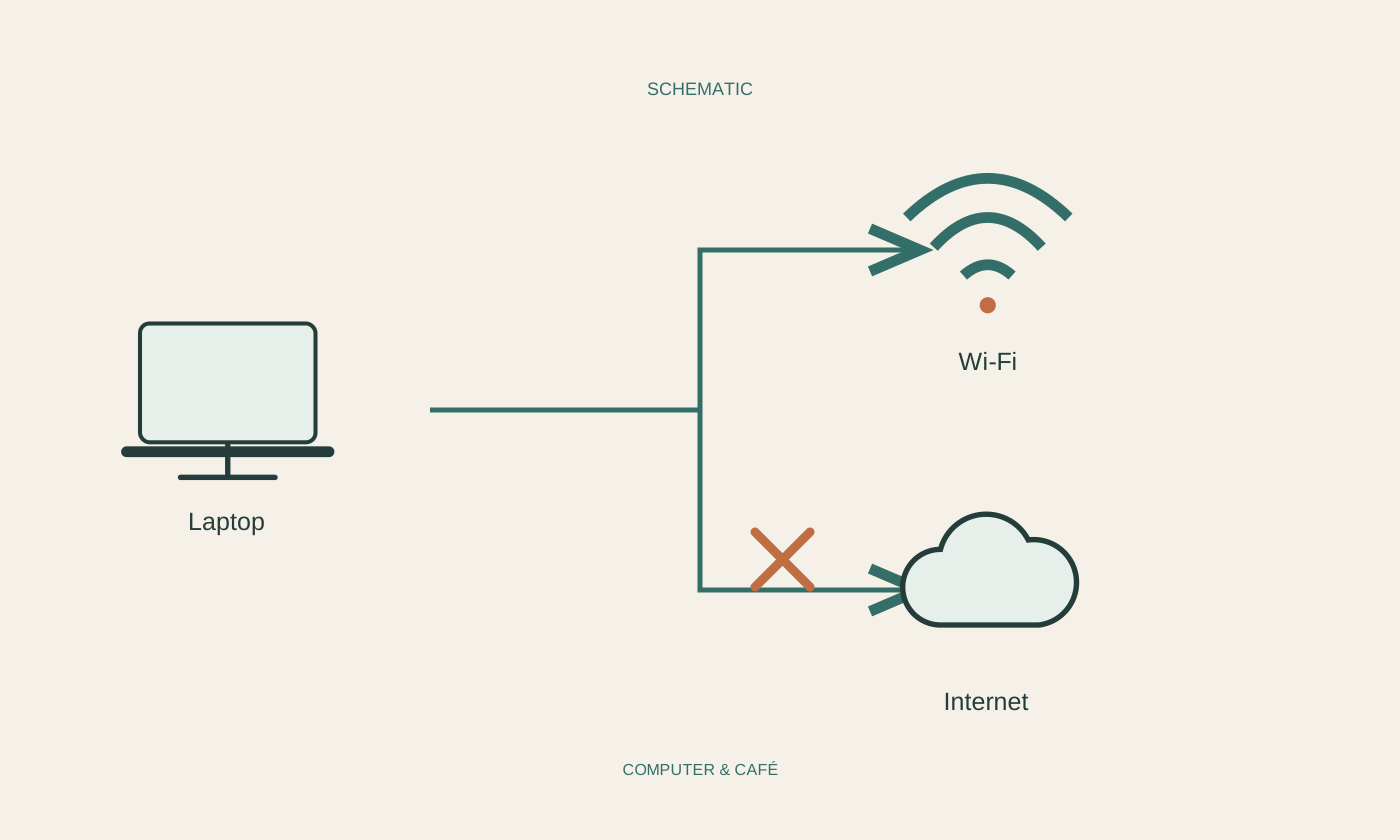
Inspect paper, intended covers and visible error messages according to the model’s instructions. For a paper jam, follow its documented removal procedure instead of pulling arbitrary visible sheets. Check the computer-to-printer connection or reachability on the intended network. A guest network may prevent direct communication between devices. If the printer can generate its own test page, use that as a comparison independent of the document you sent. Failure of this internal task means the computer queue is not the only issue. Record that result before making software changes that might otherwise obscure the original device problem.
Manage the queue deliberately
Open the affected printer’s queue and examine order and status. A paused job may block later work. If your own job is no longer needed, cancel it through the intended control and wait for a response. In a shared environment, do not delete other people’s jobs without agreement. Cancellation can take time, especially when data has already reached the printer. Avoid sending new attempts while waiting. An empty list on the computer does not always mean the printer has no previously received pages left to produce, so keep this possibility in mind when handling confidential documents.
Restart with one simple page
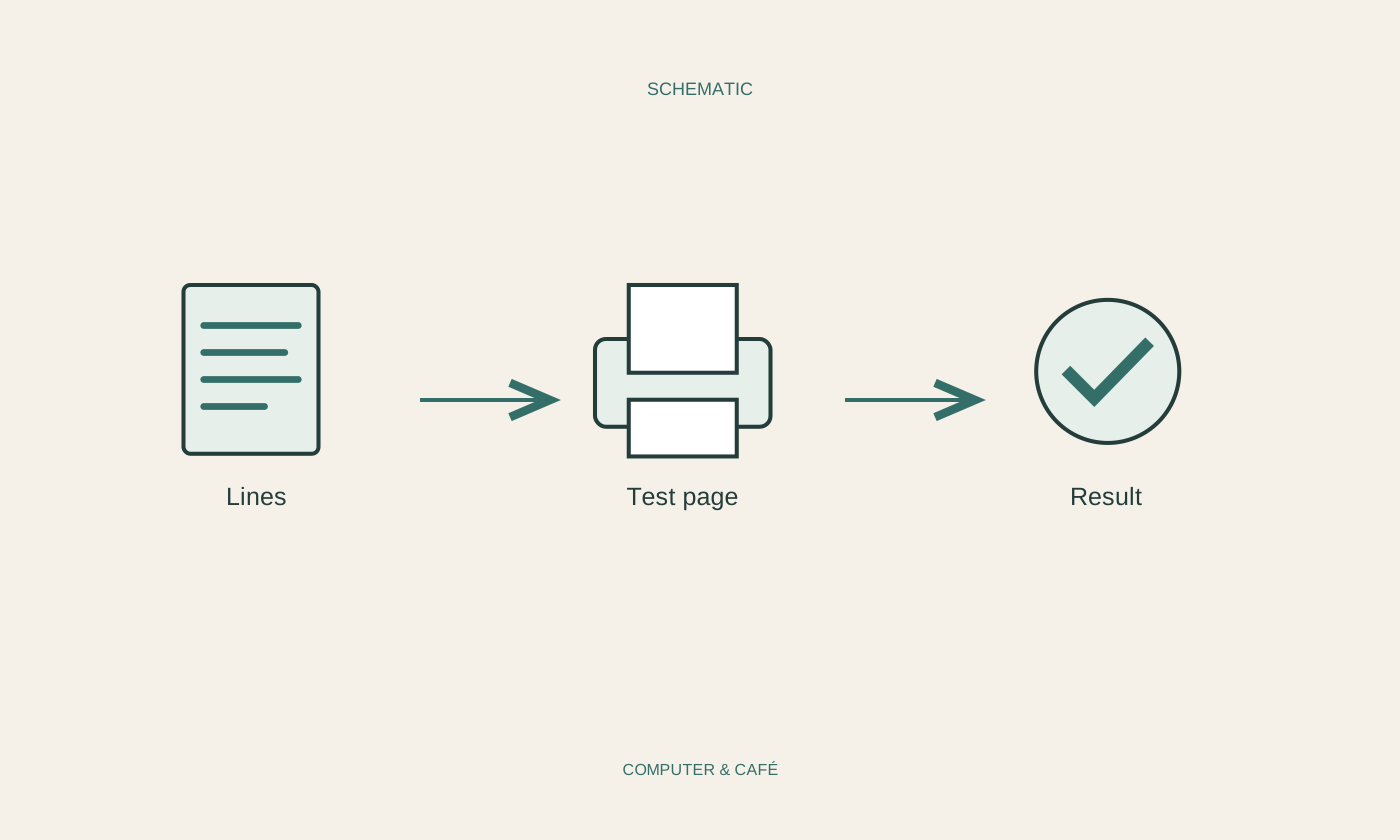
Once the printer and queue are ready, print a single uncomplicated test page. Check paper size, copy count and the explicitly selected device. If it works, return to the original document, perhaps beginning with one representative page. Large images, unusual paper sizes and substantial files can behave differently from a short piece of text. Do not change every print option at once. Compare preview and note the settings under which the test succeeds. An apparently general printing failure may then become a specific, understandable issue with one document or format rather than with the entire printer installation.
Use restart and diagnostics purposefully
If restarting seems necessary, save work and follow the manufacturer’s instructions while considering other users. Restarting a printer differs from resetting its network configuration. For persistent queue trouble, use current official diagnostics from the operating system provider or manufacturer. Avoid manually altering system services without suitable instructions. Prepare the model, connection type, status message and test-page results for support. When printing resumes, inspect the queue again for overlooked duplicates. This reduces the chance that the next power-on will unexpectedly produce old copies, potentially containing private material, after everyone assumed the original problem had been resolved.
Stop repeated attempts, check the device and queue, then send one test page.