Separate slow work from a complete stall
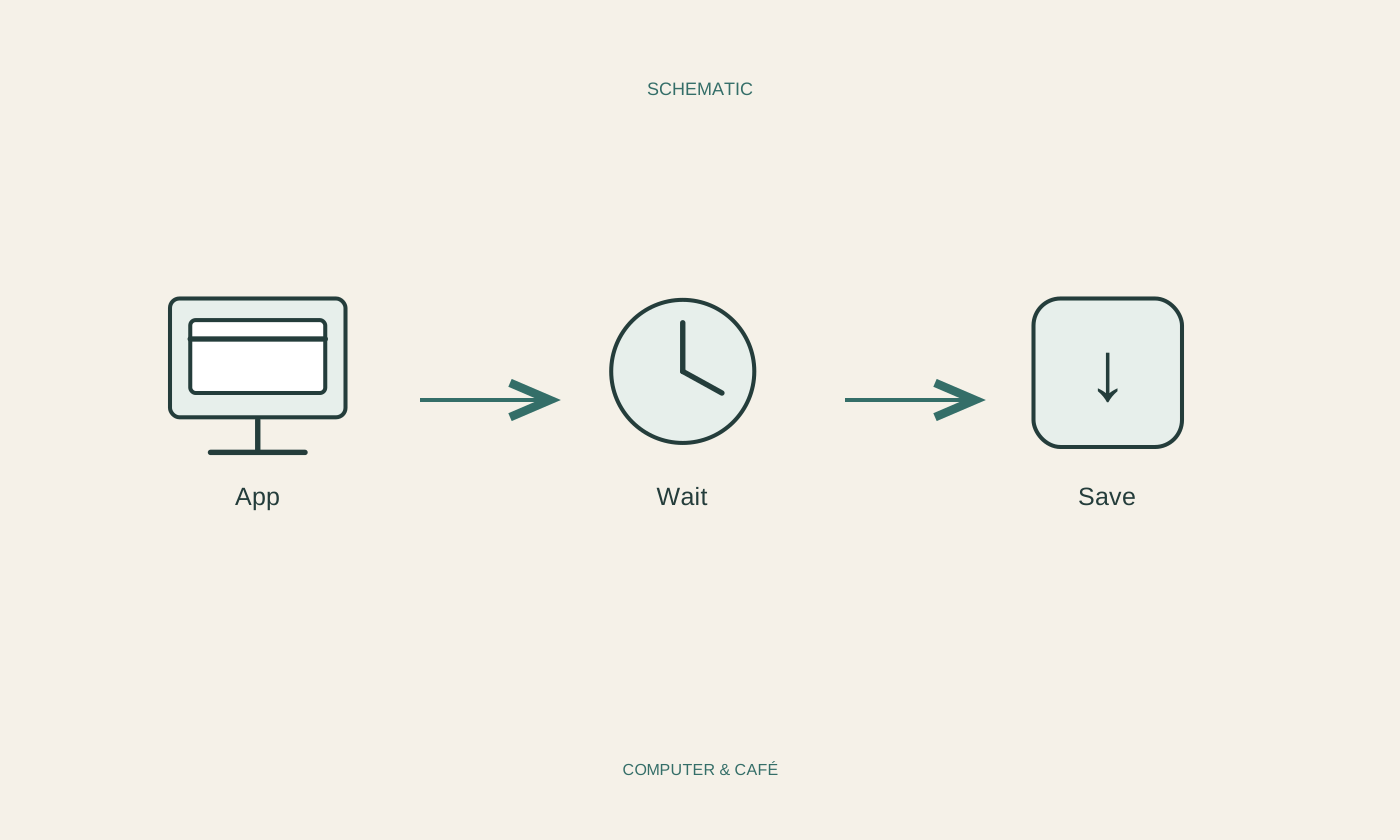
A large document, substantial import or video export may take time without the application having crashed. Look for progress information and consider the task you just started. Avoid repeatedly clicking the same button. Extra input may queue more work that begins as soon as the program becomes responsive again.
If other applications still work, leave the affected program alone briefly and save your work elsewhere. Note the time and the last action you performed. The observation that one particular export stops progressing is much more useful later than the broad statement that the entire computer crashed, especially when the rest of it remained usable.
Look for a dialog waiting out of sight
Sometimes an application is waiting for confirmation in a window behind another window or on a second display. Carefully inspect the open windows and the taskbar or window overview. A save dialog can prevent interaction with the main document even though the program has not actually failed.
Consider whether an external monitor was recently disconnected. Use your operating system's documented window-management methods to bring an off-screen window back. Do not press Enter experimentally, since that might confirm a dialog you have not read. First establish what decision the application is asking you to make and whether the apparently frozen main window is simply waiting for it.
Consider unsaved changes before forcing a close
If the application remains unresponsive, establish when you last saved and whether it offers automatic recovery. Forcing a program to quit can lose unsaved changes. That possibility belongs in the decision, particularly when a long editing session may exist only in memory and you cannot easily reproduce it.
If you need to end the process, use the operating system's built-in task or activity manager and identify the affected application precisely. Avoid ending several unfamiliar processes speculatively. Restarting the whole computer is a broader intervention that also affects other open work. Save that work first wherever the system still allows you to do so.
Save recovered work as a separate version
Reopen the application and read any recovery offer carefully. Save a recovered version under a clear new name before overwriting an existing file. Compare the contents and editing state. The most recently displayed recovery item is not automatically the most complete copy of your work.
Then inspect the original destination. Saving may have failed because a network drive or cloud location became unavailable. Use an unimportant new file to test whether a suitable local folder is writable. Do not use the only important original for this experiment. Successfully opening a document also does not, by itself, establish that there is a reliable backup elsewhere.
Document an action that repeatedly triggers the problem
If the stall returns, compare another file and a small similar task. A problem confined to one document points towards that document's contents. Several files failing at the same command make the program version, extensions or working environment more relevant. Use copies for experiments that might alter original material.
Check official updates and the publisher's known-issue guidance. Before reinstalling, preserve personal templates, settings and files according to the documentation. For support, record the exact command, file size, error message and last situation in which the task worked. These details turn a vague report of freezing into a problem another person can investigate methodically.
Consider unsaved work first, close only what is necessary and inspect any recovered version separately.