Look for warning signs first
Inspect the cable, plugs and case for visible damage. A swollen battery, unusual smell, smoke, liquid exposure or strongly abnormal heat is a reason to stop experimenting. Stop using the device where safe and obtain appropriate professional help. Do not open, press or puncture an abnormal battery. Do not touch wet mains connections. This initial inspection matters more than deciding which software setting to change. If none of these warning signs is present, record the exact on-screen message and charge level. A percentage remaining unchanged briefly is not enough, by itself, to diagnose a failed battery.
Check the intended power supply
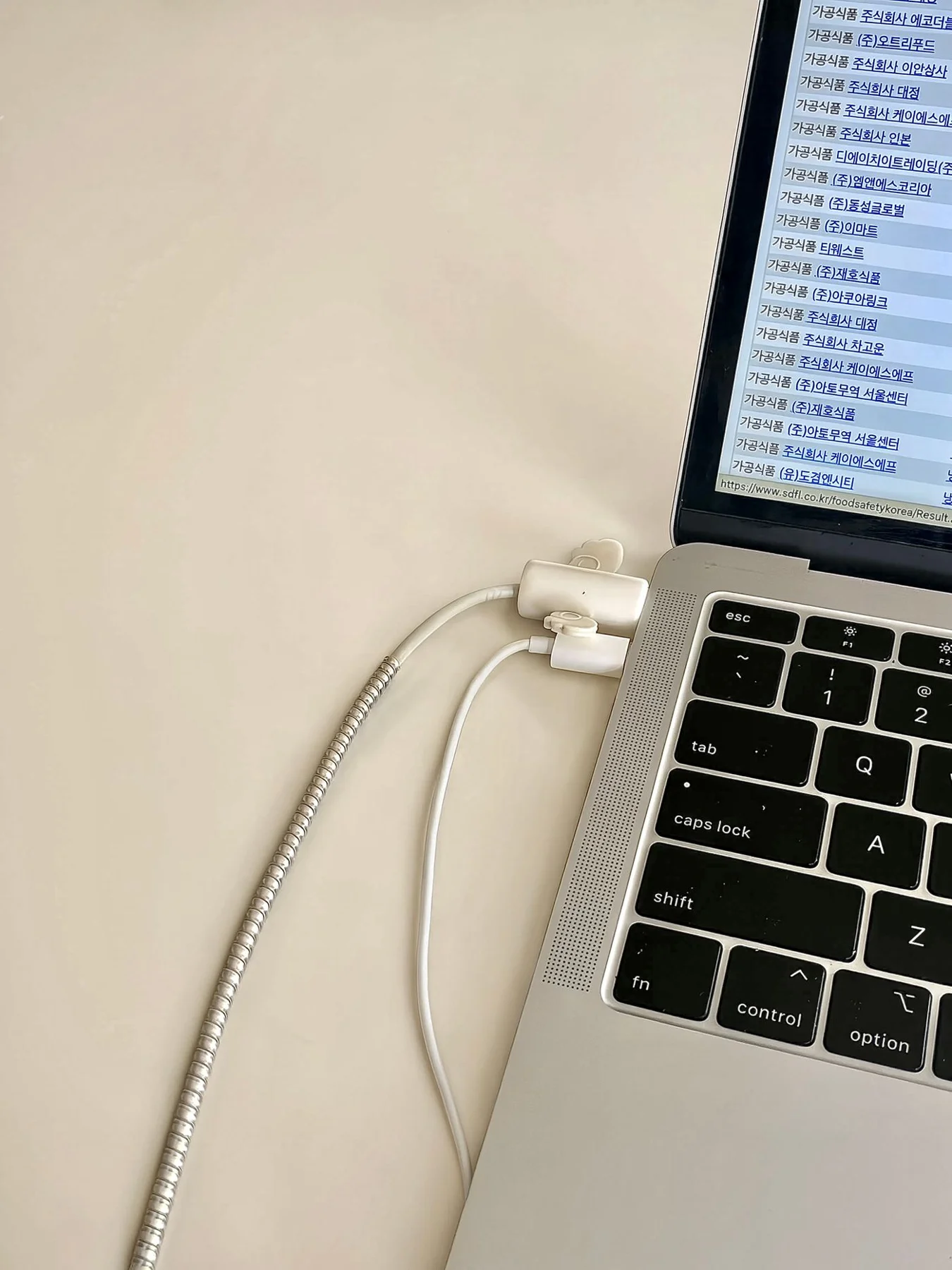
Use a power adapter appropriate for the laptop and a suitable cable. With USB-C, the port, adapter and cable must support the required charging function and power. A phone charger may supply too little power even though its connector fits. With dry, undamaged components, check that detachable connections are properly seated. A dock or hub adds another part to the charging path. Where the manufacturer permits, test the appropriate adapter directly on the laptop. Use a known suitable socket without introducing damaged or questionable extension equipment into the test, which would create uncertainty rather than remove it.
Distinguish charging from power demand
Observe whether the system recognises an adapter and what message it displays. A computer can receive power while its battery level barely increases under heavy load. Some devices deliberately limit charging as part of battery-management features. Consult the manufacturer’s current explanation of those settings rather than treating one percentage as a universal fault indicator. Save your work and reduce unnecessary applications for comparison. Wait a reasonable short period and observe the change. Note whether the laptop was running, in its intended sleep state or shut down, because those conditions make the observation easier to interpret.
Compare a known suitable combination
If another explicitly compatible, undamaged adapter and suitable cable are available, a comparison may help. Do not randomly exchange components whose ratings are unknown. Change one understandable part of the arrangement where possible. On a computer with several USB-C sockets, also confirm that you are using one intended for charging. Wiggling or pressing a plug is not a reliable test and may worsen damage. Do not remove debris with metal tools. For a dirty or damaged charging socket, follow the exact cleaning instructions or consult a qualified service provider instead of improvising a repair.
Prepare useful information for support
If simple checks do not explain the behaviour, record the model, adapter specifications, cable, port and exact message. Describe when the issue began and whether it followed a fall, travel or an accessory change. Do not share passwords or unnecessary personal files. Back up important data promptly if the computer can still be operated safely. Battery replacement or repair should follow the exact model’s service procedure. Avoid generic opening instructions that assume a different construction. Clear observations let support investigate the actual issue instead of first having to reconstruct which combinations and changes you have already tried.
Check safety, compatible power and the exact charging message before assuming the battery has failed.