List the connections you actually need
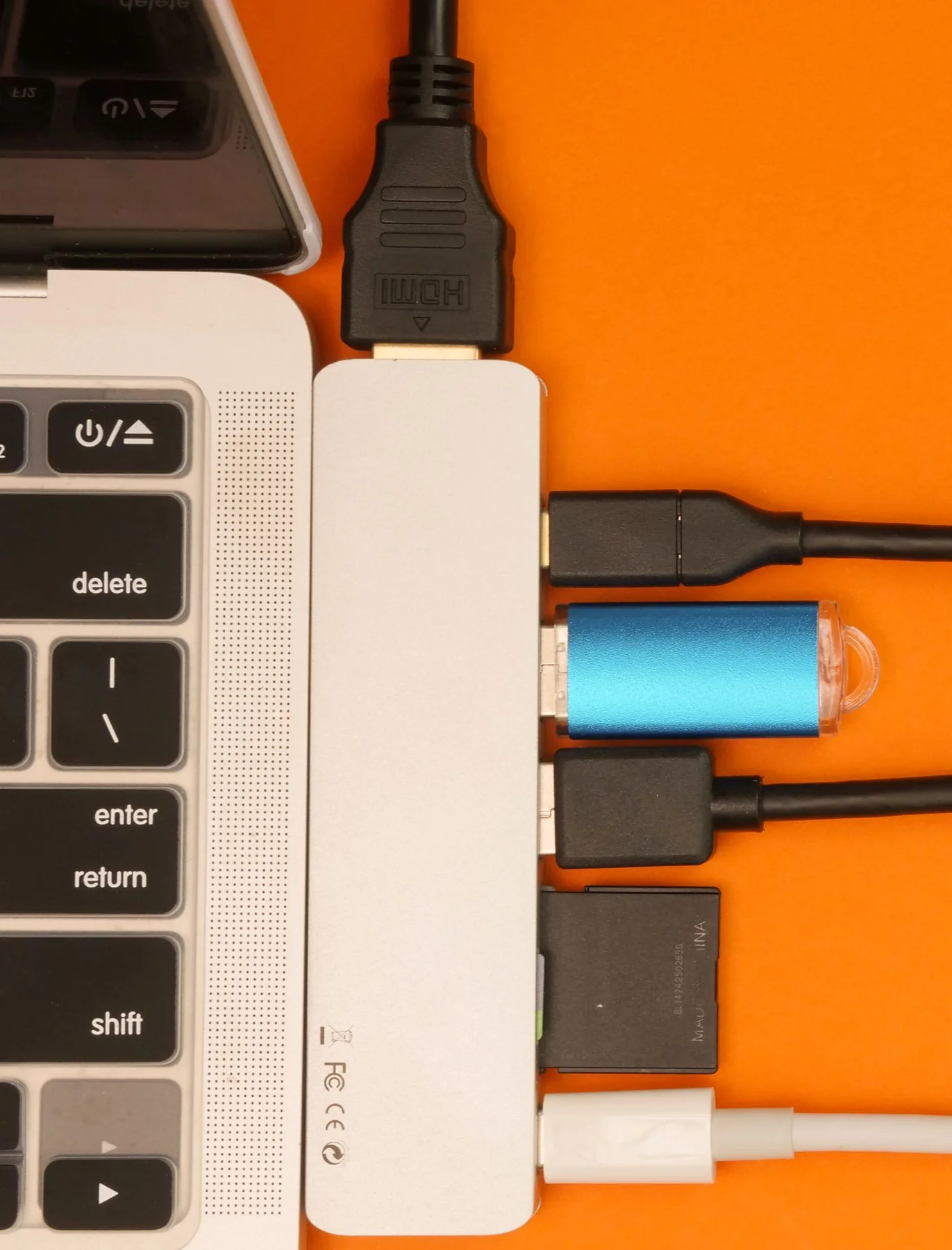
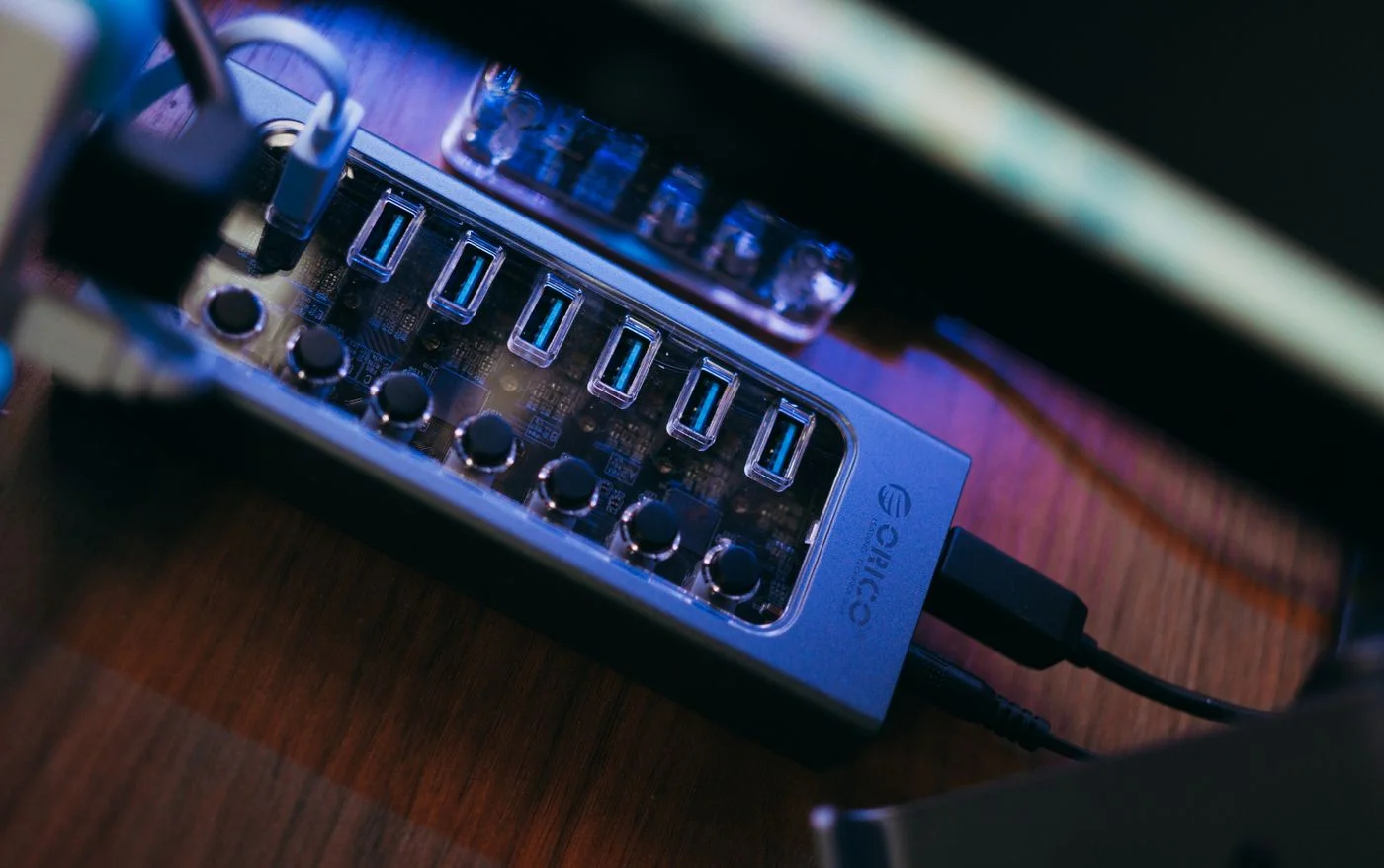
Write down which devices must be connected at the same time: keyboard, mouse, card reader, printer or an external drive. Add devices used only occasionally. This distinguishes a need for a few extra sockets from a need for particular functions. Do not buy the highest port count if its footprint and wiring do not fit the desk or your routine.
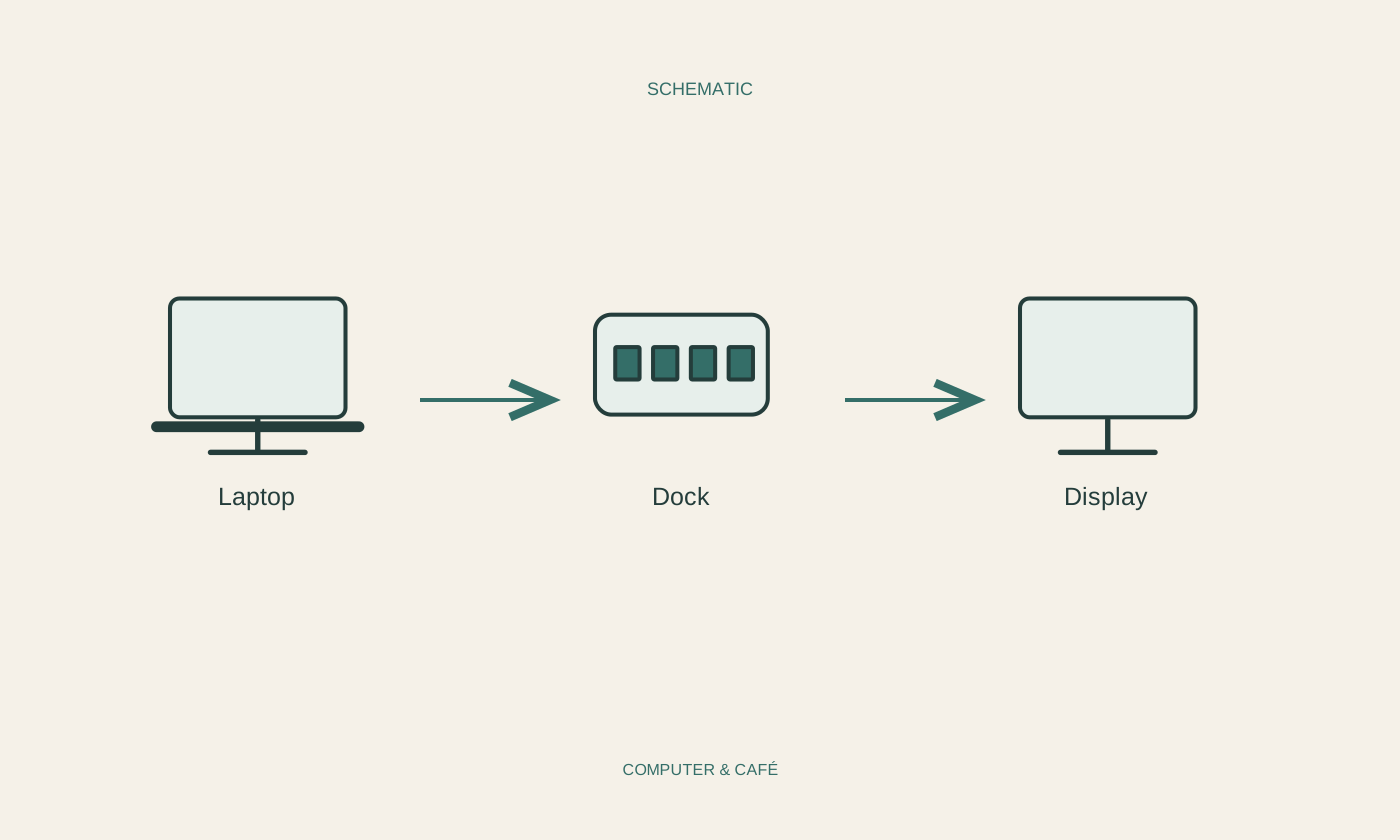
For each device, record the connector and the job it performs. A charging connection is not automatically a data connection. A monitor needs explicitly supported video transmission, so a matching plug alone does not place it among ordinary USB accessories. This simple inventory prevents choosing a hub that appears physically suitable but cannot perform the task that matters most.
Check the computer-side connection
Compare the hub’s host connection with the capabilities of your computer. USB-C initially identifies a connector shape; it does not by itself promise a particular transfer rate, video output or charging power. Read the computer and hub specifications together. An adapter does not automatically change the capabilities of the original port simply because the plugs can now be joined.
Consider the connecting cable as well if it is replaceable. An arbitrary cable you already own may not support the required data function. Check its length for the intended placement and avoid letting the hub hang from the laptop’s socket. For a specific model, the computer-facing port and accessory-facing ports should be clearly identified. Similar-looking sockets can perform different roles.
Understand power and shared use
Check whether the hub takes power from the computer or uses its own adapter. Compare the intended power requirements of attached devices with the manufacturer’s specifications. Several demanding devices may need a different arrangement from a basic keyboard and mouse. A port that charges the laptop also does not automatically mean every accessory port can supply the same amount of power.
Read which functions are supported simultaneously. Multiple data devices share the connection back to the computer; an advertised connection rate does not promise that rate independently to every device at once. This may matter differently for occasional documents than for several large photo transfers. Base the decision on your work rather than one impressively large number printed on the packaging.
Test your combination in stages
Connect the hub by itself, then add a device known to work. Add the remaining devices one at a time and test each one’s ordinary task. For a storage drive, begin with unimportant test files and open the resulting copies. Do not rely solely on an illuminated indicator or a device icon appearing; those observations do not establish that the complete task works.
If a connection fails, simplify the combination and compare it with direct connection to the computer. This narrows the question without immediately declaring a hardware fault. Allow transfers to finish and safely eject storage before disconnecting. Keep the model details and the working connection arrangement. A suitable hub proves itself with your devices and routine, rather than through a long list of advertised functions.
Check connection, data function, power needs and simultaneous use for your actual device combination.