Learn where files really go
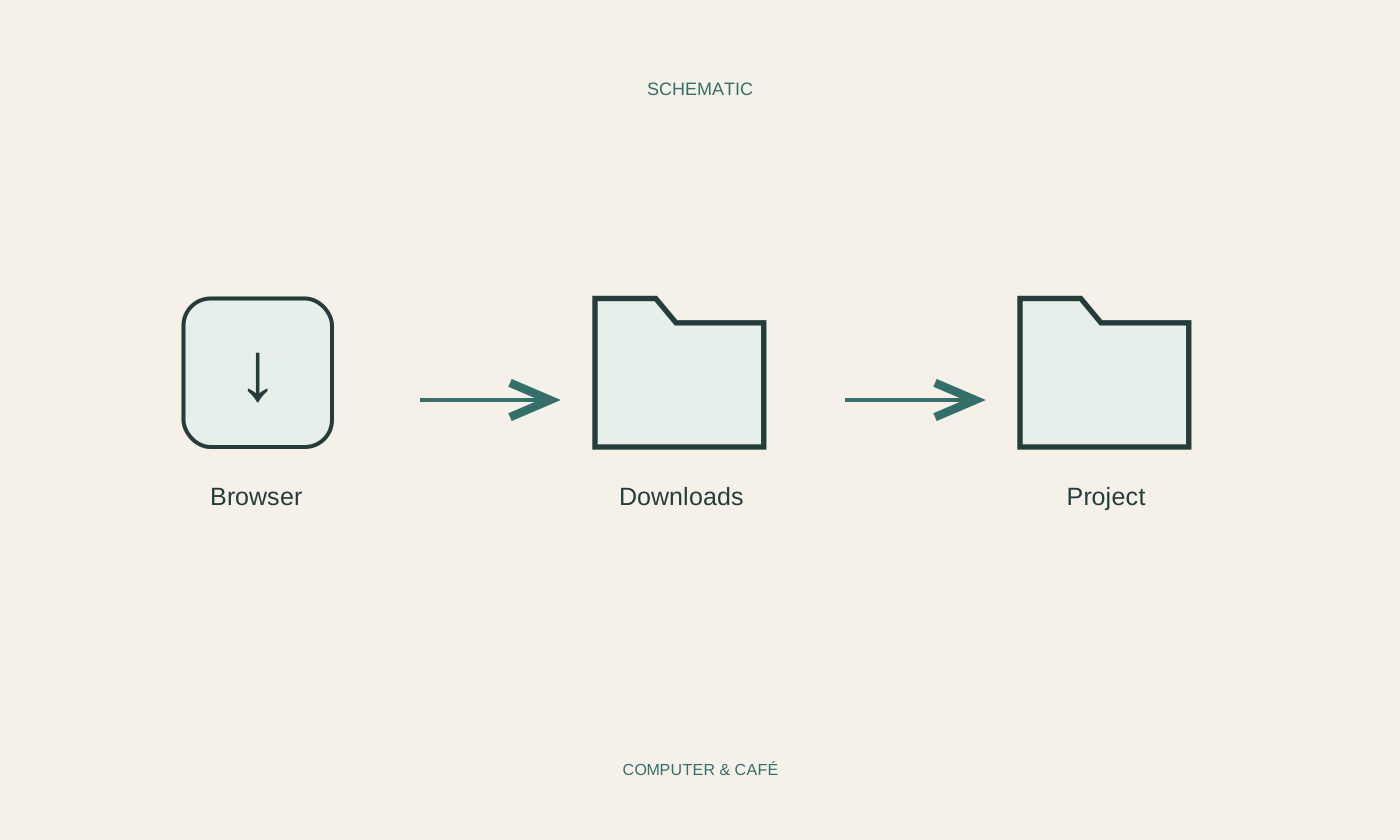
Download an unimportant file from a trusted source, then open the browser's download list and reveal its location. This shows the folder actually being used rather than the one you assume from habit. Different browsers and user accounts may have different destinations, even on the same computer.
Check whether the browser saves directly to a default folder or asks for a location each time. Either approach can work. A fixed inbox reduces clicks for many small files; a prompt helps put important documents straight into the right project. What matters is understanding the selected behaviour and using it consistently rather than repeatedly losing track of where a file went.
Treat a collection folder as an inbox
If everything initially lands in one place, treat that folder as an inbox rather than a permanent archive. Invoices, pictures and installers serve different purposes. Review recent entries and place them according to their contents. The creation date alone cannot tell you whether something is important or merely a temporary download.
Do not open unexpected files simply because their download completed successfully. Compare the source, filename and expected file type. An apparent invoice delivered as an executable program deserves particular caution. The download list confirms a transfer, not the trustworthiness of the contents. When unsure, contact the sender through a familiar independent route rather than following another unexpected prompt.
Give important files useful names
For recurring documents, a simple name containing date, subject and sender can help. Avoid accumulating nearly identical files distinguished only by automatically added numbers. First establish whether you downloaded a new version or the same contents again. Relevant document references may be useful in the names of original receipts or statements.
Do not change a file extension to make an unfamiliar format appear to be a PDF or image. Renaming does not convert the contents. If conversion is necessary, use the appropriate function in a trusted application and inspect the generated result separately from the original. Keeping the two distinguishable avoids confusion about which file remains editable.
Separate the download list from the stored file
Removing a line from the browser's download history is not necessarily the same as deleting the file. Read the command you are using. The browser may remove a record while leaving the actual item in its folder. Conversely, a file may already have moved while an old entry remains visible in the list.
Use the real storage location when trying to find something again. A quick experiment with an unimportant file can show how your browser behaves. In synchronised folders, also consider whether deletion or movement will affect other devices. A cleanup that appears local may otherwise change more than you intended, particularly when a shared folder is involved.
Attach cleanup to a recognisable occasion
Review the downloads folder after finishing a project or a substantial research session. Remove known expendable copies and put required documents in their final folders. Leave uncertain files alone until you understand their contents and purpose. Order comes from sensible placement, not from achieving the emptiest possible folder view.
Finally, check that important documents are included in your backup. A clearly named folder cannot protect against drive failure. For material needed while travelling, also test access without the internet. That takes the process beyond a completed progress bar to a file that is actually available, recognisable and stored somewhere you can explain later.
Know the destination, treat downloads as incoming material and inspect important files before putting them away.