Ask why each tab is still open
Move through your open pages slowly and ask what each one is doing there. Some belong to the current task, others are waiting to be read, and a few are simply leftovers. That distinction is more useful than imposing an arbitrary maximum number of tabs that does not match the work you actually do.
Start with one browser window. Close clearly finished pages after checking that any writing or form entries have been saved or submitted. An unfinished form deserves different treatment from an article you have already read. The aim is to make decisions visible, not to lose work through one enthusiastic round of closing everything.
Give one task a bounded workspace
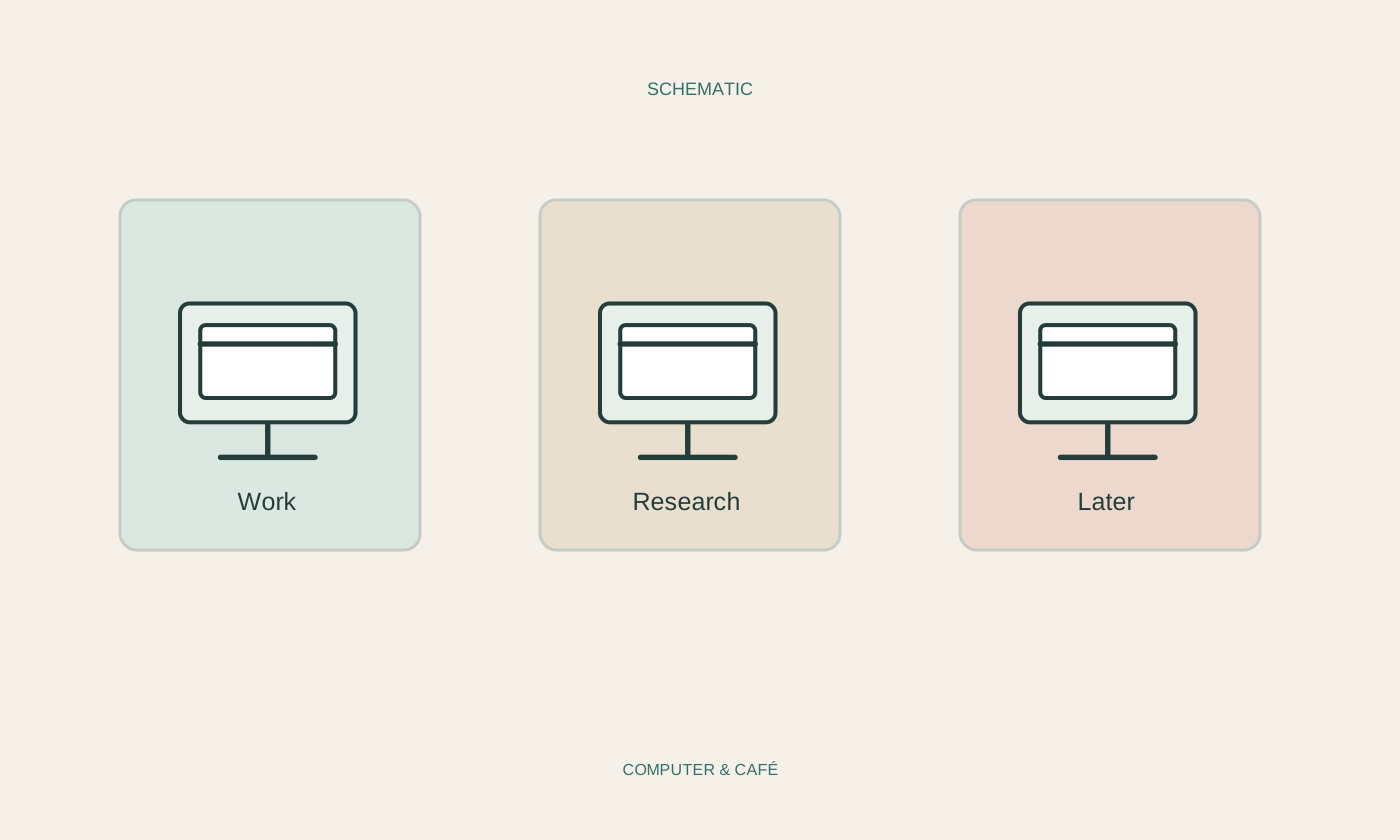
A separate window can help with a particular research task. For a trip, it might contain timetables, accommodation details and a note collecting your decisions. Remove pages once their useful information has been recorded. The window then represents a specific job rather than becoming another general holding area for anything interesting.
If your browser offers tab groups, give them meaningful task names. A label such as November trip says more than a colour alone. Check how the browser saves and restores groups, however. An attractively arranged group is not automatically a permanent backup of all the information on the pages it contains.
Give later reading a different home
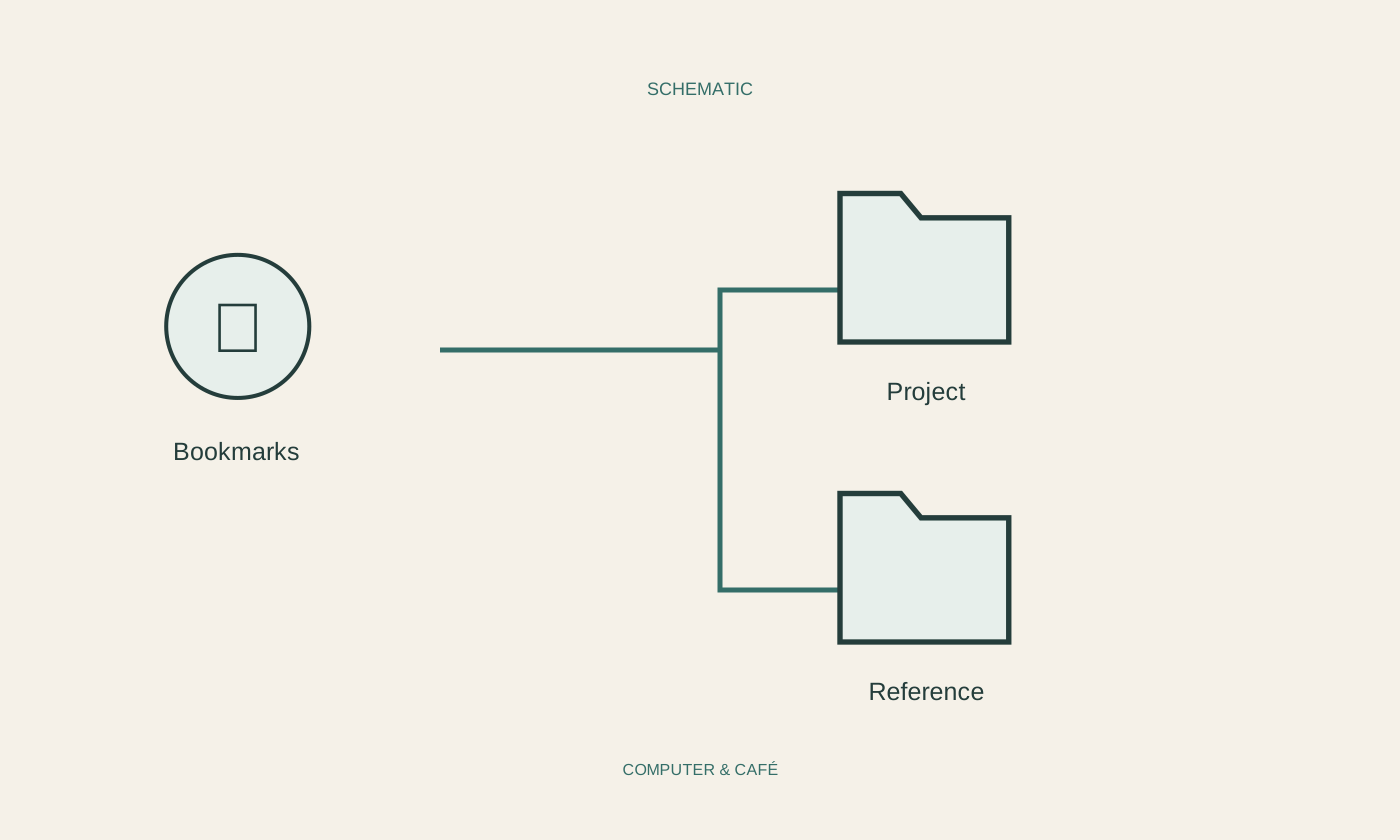
Save pages for later as bookmarks or in an appropriate reading list. Prefer a small collection you review to dozens of subject folders you never reopen. A date or a short note can explain why you saved something, so you do not have to reconstruct its purpose several weeks later.
A bookmark primarily preserves an address. It does not guarantee that the content stays unchanged or remains available without an internet connection. If you genuinely need a document offline, use a suitable download or save function and inspect the result. A collection of links is not the same as an archive of the documents behind them.
Practise recovering a closed page
Become familiar with the browser history and its command for reopening recently closed tabs. Try it on an unimportant page before relying on it during a rushed task. Menu names and keyboard shortcuts vary between browsers and operating systems, so the browser's own help is the right reference for your setup.
History is useful for finding something again, but it is not a reliable substitute for planning. Private sessions, cleared data and preferences can affect what remains. Write down an important next action and its address explicitly. A short task list is easier to act on than a row of tiny icons stretched across the top of the screen.
Finish research with three decisions
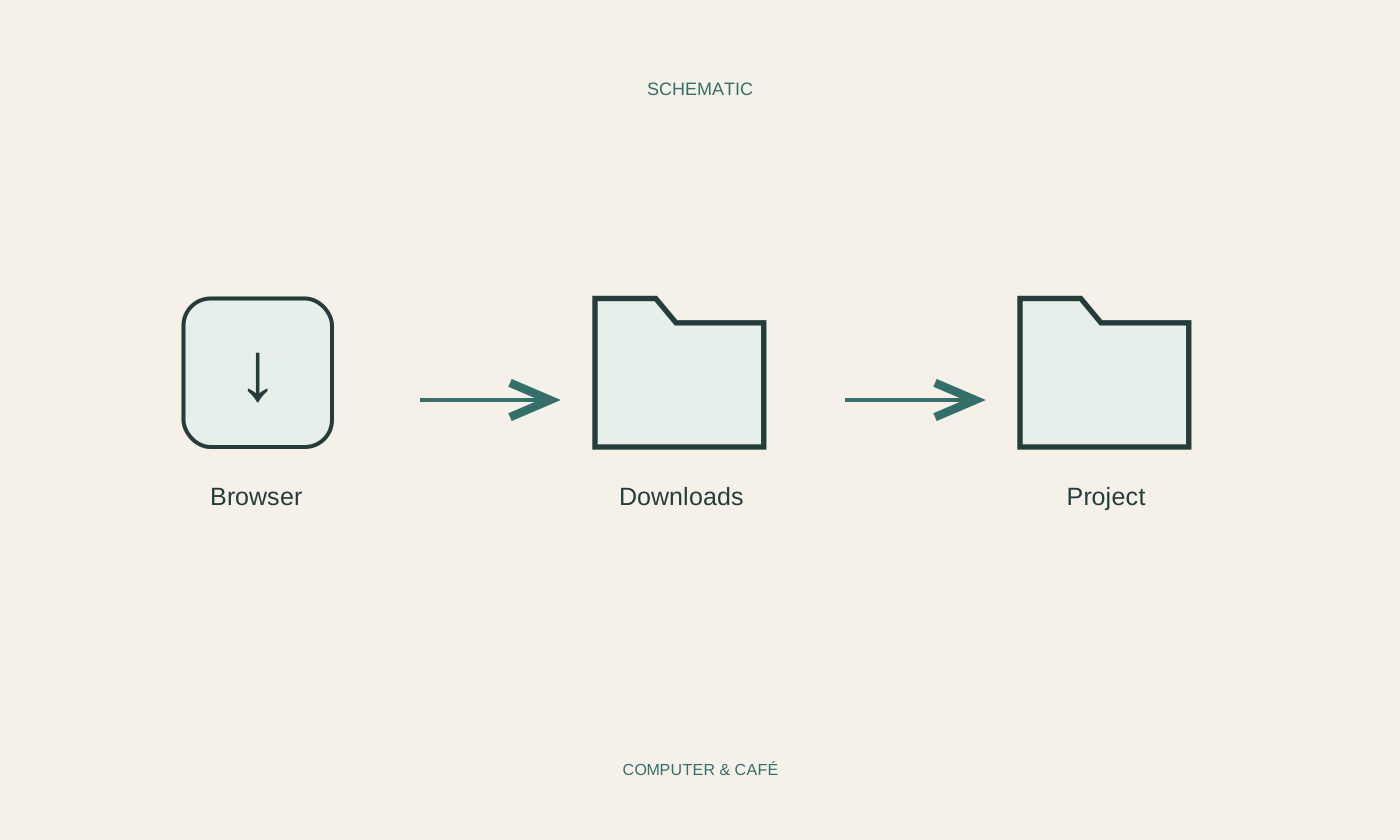
At the end of a session, decide what is finished, what deserves keeping and what remains as a specific action. Save important results outside the temporary state of the browser. You can then close the associated window without leaving every page open out of concern that the entire task will otherwise disappear.
If many pages are keeping the computer busy, reducing open work may also make operation smoother. It cannot promise a fixed performance improvement because different pages use different resources. The more dependable benefit is clarity: the active task is easier to locate, and the pages still open have an identifiable reason to be there.
Keep current work in tabs, save later reading and record important results independently of the browser session.