Describe the event completely
Give the calendar entry a title that remains understandable in a small notification. Dentist check-up is clearer than appointment. Add the actual location or intended meeting link, then check the date and time. For an invitation, distinguish information you are allowed to change from the reminder settings that affect only your own calendar.
Separate preparation from the event's start. If papers need assembling beforehand, that may deserve a separate task. An alert five minutes before a conversation cannot replace half an hour of preparation. Include what you need while avoiding unnecessary private details in the title when notifications may appear on a locked screen or somewhere other people can see them.
Set lead time according to the action
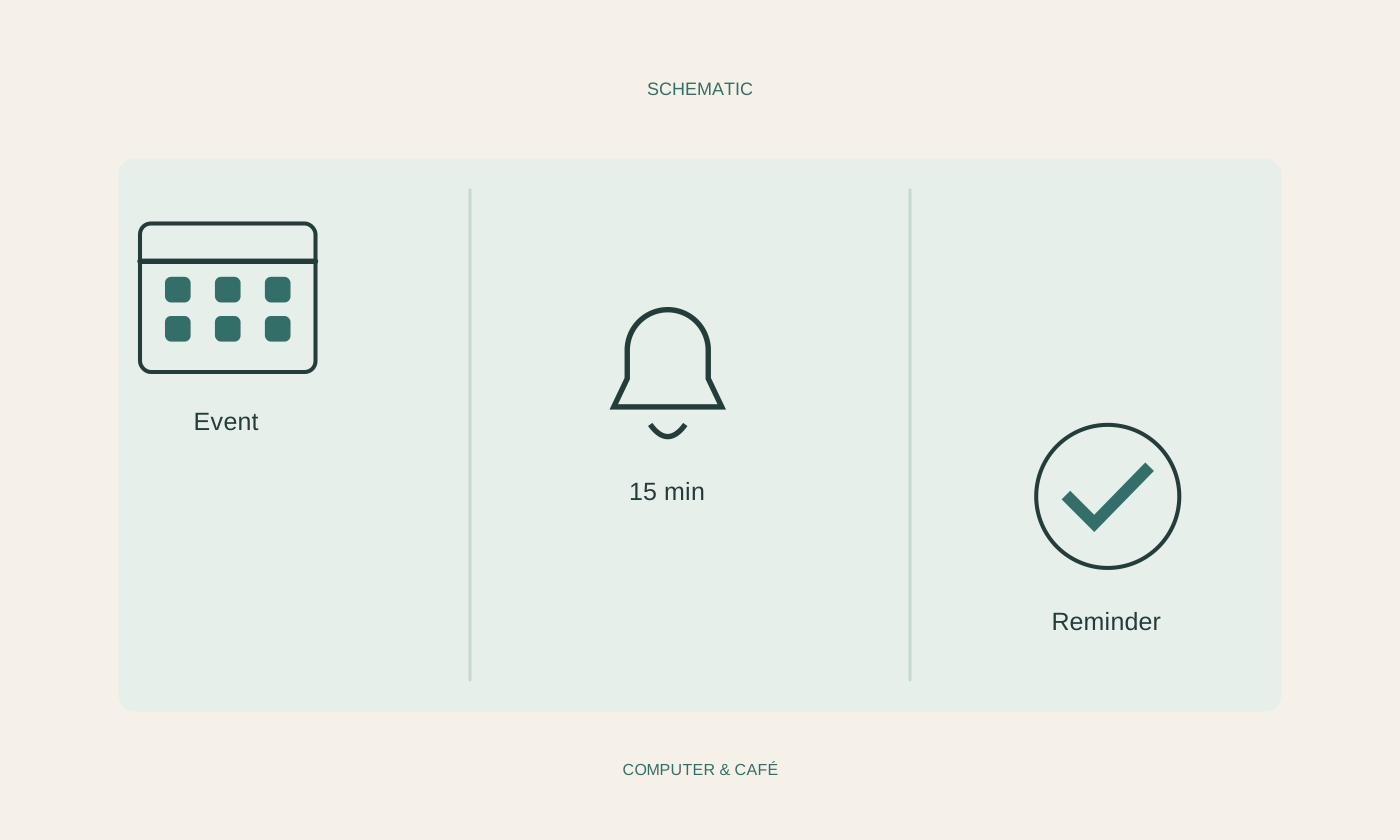
Decide what should happen when the reminder arrives. An online call may need a short equipment check, while an appointment elsewhere requires travel time and perhaps time to find parking. Choose the lead time for that action. One identical reminder setting is unlikely to suit every kind of event in your calendar.
Several reminders can help with important appointments if they have different purposes. An earlier one might concern documents and a later one the moment to leave. If both repeat the same information without prompting a distinct action, they easily become background noise. Remove unnecessary alerts instead of assuming that adding more will always increase attention.
Inspect time zones and all-day entries
For meetings involving other locations, check the displayed time zone and each person's local time. Do not simply copy an hour from a message without establishing which location it refers to. Seasonal clock changes and travel can create differences that are not obvious from an abbreviation you recognise.
An all-day event is different from an appointment at midnight. Choose the appropriate type for birthdays, deadlines or absences and inspect when its reminder will appear. Exact behaviour depends on the calendar service. For important deadlines, establish what the date actually means rather than inferring a legal or organisational interpretation automatically from how the calendar displays it.
Review recurring patterns beyond the first date
For recurring events, inspect the frequency and any end date. The same date every month is not the same as every fourth Tuesday. Look at several later occurrences in the calendar. This catches unexpected shifts before a reminder appears for an event that no longer corresponds to the intended arrangement.
If only one meeting changes, read the recurrence-editing dialog carefully. The selection may affect that occurrence alone or additional events. Changes in shared calendars can also send messages to other participants. Make the choice deliberately and inspect the affected dates afterwards instead of assuming that a change to the visible event had no wider effect.
Test the route the reminder will take
Create an unimportant event a short time ahead and check whether its notification appears on the device you normally carry. Inspect notification permissions, muted modes and the selected account. A correctly saved event does not prove that your phone or computer is allowed to display the alert you expect.
Repeat the check after changing devices or accounts, then remove the test event. A small verified arrangement is more dependable than a large collection of untested alarms. For an especially important appointment, use an appropriate additional organisational safeguard rather than relying entirely on one technical notification. The calendar should support preparation, not become its only fragile point of dependence.
Set reminders around the action required, then test delivery on the device you will actually use.