Compare the file with the printed result
Open the PDF and inspect the affected page at a readable zoom. If content is already missing on screen, a printer setting cannot restore it. Compare the original document with the exported PDF where possible. A clipped table may have been damaged during export and need correcting at that stage.
If the screen version is correct, describe the difference on paper: missing edges, incorrect order, blank pages or altered size. Print just one affected page for subsequent experiments. Reprinting a long document in full rarely provides extra information and simply leaves you with several bulky versions of the same unsuccessful result.
Consider paper size and scaling together
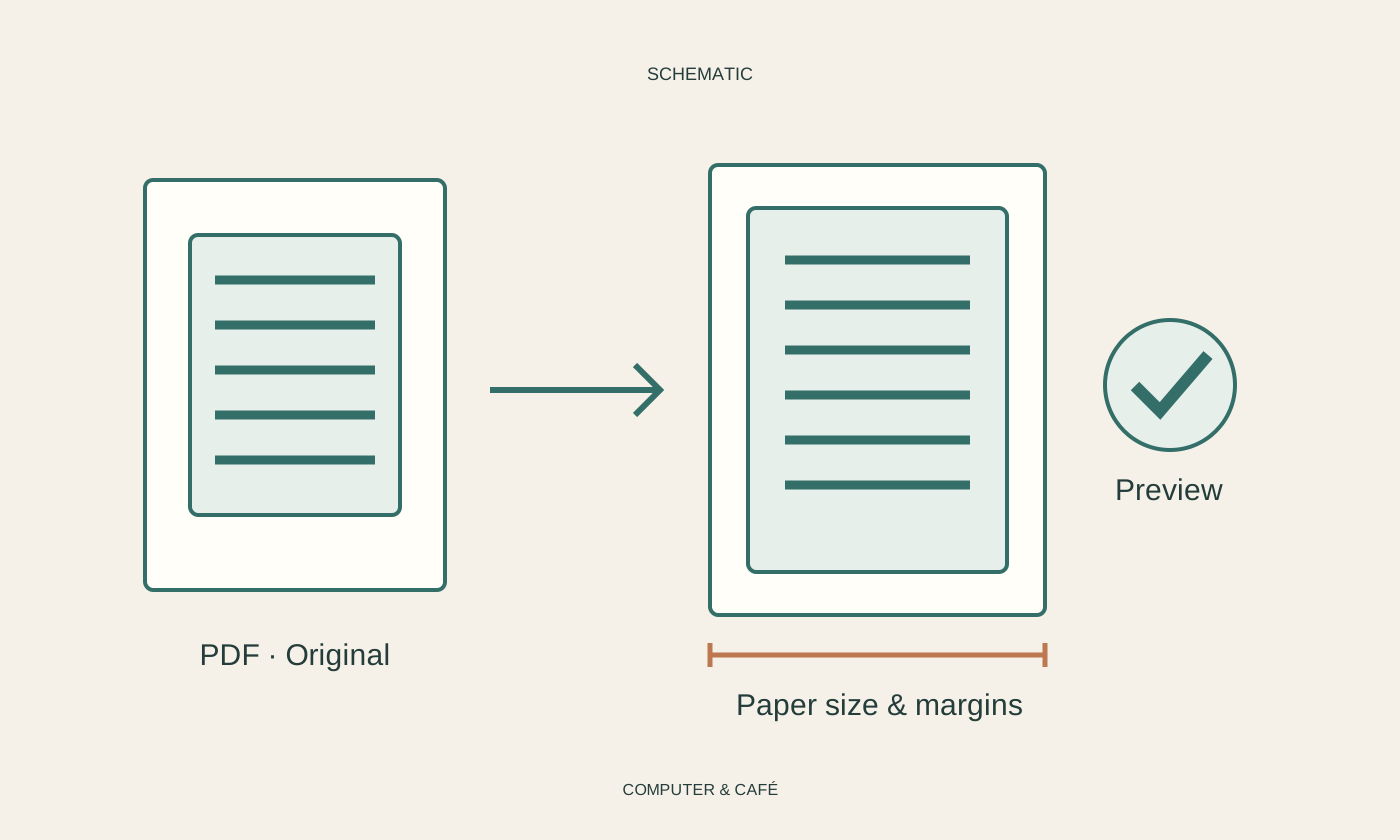
Check the page size inside the PDF, the paper size selected in the print dialog and the paper actually loaded. All three need to suit the task. A Letter document printed on A4 does not behave identically under every setting. Also inspect portrait or landscape orientation and the preview before starting the job.
An option that fits content to the page may prevent clipped edges but can change its physical size. That matters for a scale drawing, sewing pattern or form with prescribed dimensions. Follow the document's printing instructions and measure a printed reference where provided. A preview that looks neatly contained is not proof that the dimensions on paper will be correct.
Check order and two-sided printing
Look for settings that print only odd or even pages, place several pages on one sheet or reverse the sequence. They may have remained selected from an earlier job. Choose the options deliberately for this document. An unexpected output is not automatically evidence that either the PDF or the printer is broken.
For two-sided printing, the binding edge affects the orientation of the reverse side. Test two clearly different pages before printing everything. With manual duplex, reloading instructions depend on the printer. Use an unimportant marked sheet for a trial if the model's guidance does not make the required orientation immediately clear.
Examine special PDF content
Form fields, comments and annotations may be handled differently by print options. If completed fields disappear, first check that they were saved and remain present when the file is reopened. Then inspect the printing options in your PDF application. Avoid sending confidential documents to an unfamiliar online converter as a quick workaround.
If one viewer consistently struggles, compare a second trusted PDF viewer using the same file and test page. Do not change the printer driver and document simultaneously. Exporting again from the original application may also be useful when the source is available. Keep the previous version until you have inspected the replacement rather than assuming a fresh export must be better.
Give the printer a separate comparison task
Print a familiar simple document or the printer's intended test page. If that is also faulty, investigate the connection, queue and model-specific guidance for supplies or maintenance. Cleaning and alignment procedures vary between devices and should not be borrowed indiscriminately from instructions for a different printer.
If the test page looks correct, keep the investigation focused on the document and printing path. Record the selected paper size, scaling, application and affected page number. These details make the problem repeatable and easier to explain. Once the single-page test works, print the required range using those same checked settings, rather than introducing another last-minute adjustment.
Test one affected page and check document size, loaded paper and scaling before reprinting the entire PDF.