Prepare the intended accessory
Charge the accessory sufficiently or install suitable batteries. Have its instructions ready and check how to activate pairing mode. Switching on and pairing are not always the same action: a device can be powered without accepting a new connection. Keep it near the computer during initial setup. Temporarily turn off similar accessories if their names are easily confused. In a shared environment, establish who owns the device. Do not experimentally pair with unfamiliar items in the discovery list simply because their names resemble the accessory you are trying to connect.
Select it deliberately on the computer
Open the operating system’s Bluetooth settings and confirm Bluetooth is enabled. Start adding a device and compare the discovered name with its documentation or label. Some products show only a generic model name. If a confirmation code appears, compare the displayed information as the pairing dialog requires. Do not enter arbitrary numbers when the device identity remains uncertain. Wait for the connection to be confirmed. Appearing in the discovery list initially means the accessory has been detected; it does not establish that setup has finished or that its intended functions are ready to use.
Test the actual function
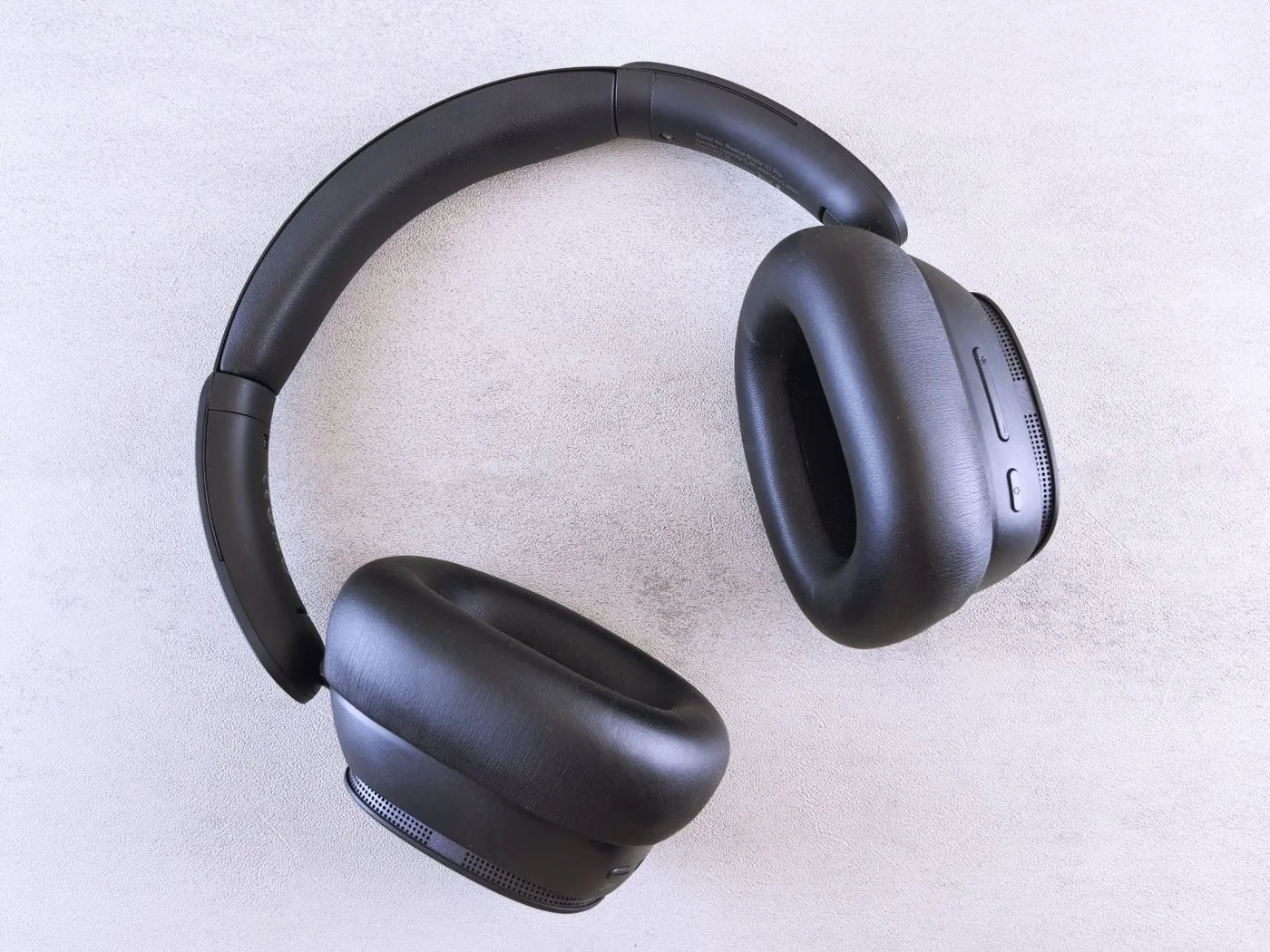
After connection, test the task you need. Move the pointer with a mouse, type harmless characters with a keyboard, or play a short quiet sound through headphones. For audio equipment, check input and output separately. Successful pairing does not necessarily select the intended microphone inside a calling application. Open that application’s own device settings and check any required permissions. Begin at a low volume before putting on headphones. A small practical check now avoids trying to investigate the connection halfway through a conversation, a presentation or an important piece of typing.
Keep earlier connections in mind
Many accessories remember previous pairings and reconnect to a familiar phone or computer when switched on. If the new computer cannot seem to connect, check those other devices. Some models support several simultaneous connections; others allow only one active partner. The manual explains how to switch between remembered devices. Remove an old pairing only when you understand its purpose and can restore it if needed. Before changing the pairing of your only wireless keyboard or mouse, arrange another way to control the computer so you do not accidentally lose the controls needed to finish setup.
Make everyday use understandable
Where the system allows a custom name, choose something recognisable, especially for several similar headphones or mice. Record which accessory belongs with which computer and how to check its charge level. For repeated interruptions, examine distance, power and connections to other devices before resetting everything. A factory reset may erase stored pairings, so it is not a neutral first step. When necessary, follow current diagnostic advice from the operating system provider and accessory maker. This keeps the arrangement understandable after a long break or a change of workspace, instead of requiring you to rediscover the entire pairing process each time.
Pair deliberately, test the intended task and check earlier connections when problems arise.