Decide what the picture needs to explain
Ask which question the image should answer. For an error message, the complete wording and affected application usually matter more than the whole desktop. A clipped window may need a little more surrounding context. The right selection depends on what another person should be able to establish from the picture.
Move private windows and notifications out of view before capturing. An account, document name or background conversation can reveal information unrelated to the issue. Where practical, reproduce the problem with harmless example data. This reduces later editing and lets you preserve a clear, useful view without exposing personal material merely to explain a technical fault.
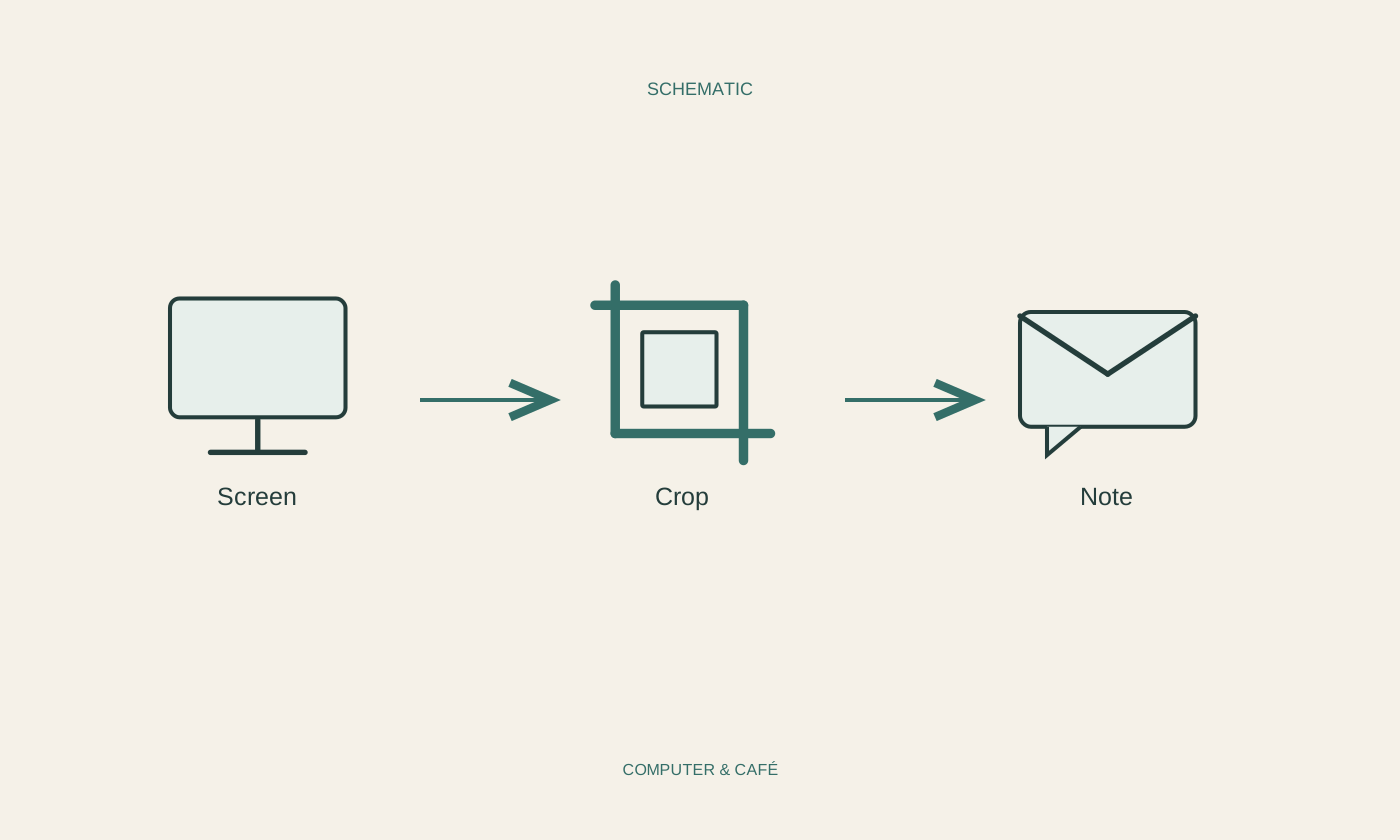
Capture the relevant area
Use the operating system's built-in capture tool or another familiar utility. On Windows, Snipping Tool can capture a selected area; available capture types depend on the version. Include the complete relevant message and its title rather than extracting a few isolated words with no visible context.
Leave a small margin so related controls remain recognisable. An excessively tight crop can hide which application or step is involved. If the problem concerns several states, two clearly identified pictures are often easier to follow than one enormous image containing many open windows. Show the sequence in the correct order and avoid assuming the recipient already knows what happened between the images.
Annotate without covering the evidence
A simple outline or arrow can direct attention to the important area. Put the mark beside the message rather than over its wording. Avoid many colours and symbols when one pointer will do. A label should explain the observation, not assert a diagnosis that the image itself cannot establish.
When sending several pictures, number them in filenames or a brief accompanying description. Explain which image was captured before the click and which afterwards. A screenshot records a state; text can describe the action that produced it. Together they convey more than a collection of similar crops sent without any explanation of why their differences matter.
Inspect privacy in the finished image
Crop away unnecessary areas. Where private information remains inside the required region, remove it reliably with an appropriate tool or repeat the capture using harmless content. A translucent highlighter is not an adequate way to conceal text. Light blurring can also leave characters recognisable in some circumstances.
Save the cleaned result as a separate image and reopen that exact file. Check for overlooked names, email addresses, browser bars and document titles. Do not accidentally send an editable source or the original full-screen capture alongside it. Review must concern the file you will actually distribute, not only the temporary appearance inside the editing application.
Keep it readable and add brief context
Do not shrink a screenshot until the error message has to be guessed. Inspect lettering at a normal viewing size. A lossless image can be practical for interface elements and text, but visible readability and the recipient's accepted file size remain the useful tests. The smallest possible file is not a goal in itself.
With the picture, include the application name, the last action and, where helpful, the exact error wording as text. Do not include passwords or recovery keys. Keep the cleaned image under a recognisable name until the question is resolved, then retain or remove it according to its contents rather than accumulating private support captures indefinitely.
Show sufficient context, annotate precisely and check the actual outgoing image for privacy and readability.