Describe the session you actually expect
Start with a concrete situation: two hours at a spare table, a full day in an office or a short appointment on the move. The difference determines what needs to travel. A brief text correction may need only a laptop. A long working day with several meetings makes different demands on power, audio and display position.
Check which equipment will reliably be available at your destination. A table with a monitor is useful only if its connection works with your computer. For important appointments, do not depend on an unknown adapter in a communal drawer. Make necessary information or files available offline in advance in case the network fails.
Keep a small core kit together
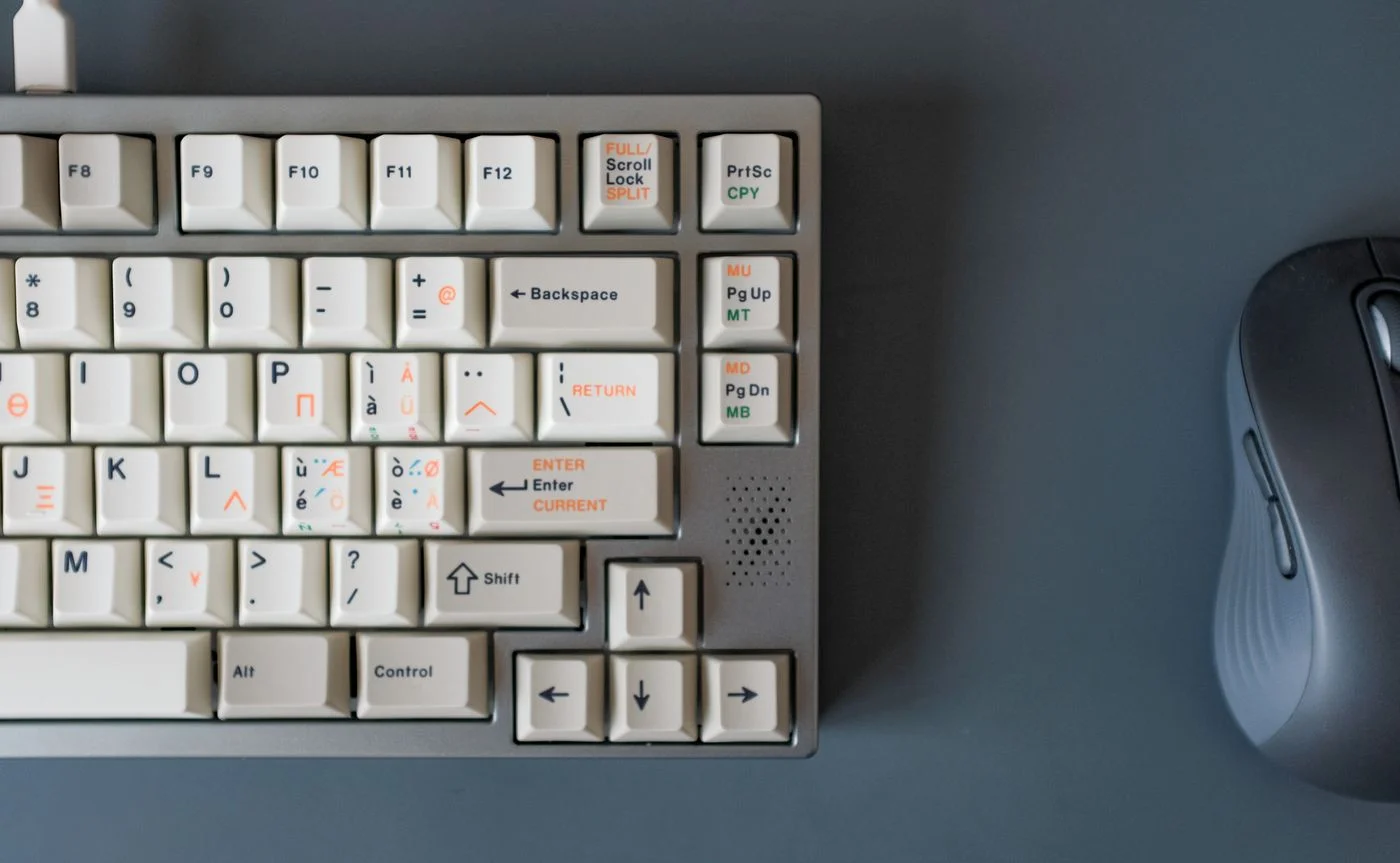
Build a core kit that stays together: the right charger, a tested cable and, when useful, a mouse and headphones. Add accessories only when they have a real job. A lightweight laptop stand may help, but longer sessions often also require a separate keyboard and mouse so that input remains comfortably within reach.
Test new adapters at home with the specific computer and display you intend to use. A connector fitting into a socket does not guarantee video output or adequate charging power. Keep small parts in an organised pouch and remove old adapters whose purpose is no longer clear.
Use a sensible setup order
Put the laptop on a stable surface first and check the space around it. Ventilation openings need clearance; soft surfaces may cover them. Find an accessible power socket and route the charging cable so it does not stretch across a walking route. Connect the rest of the equipment after that.
Arrange the screen and input devices around your current task. Changing your position at the table may reduce reflections without adding equipment. Before a video call, check the camera view, microphone and headphones rather than keeping other participants waiting. A short test recording can reveal more than a setting that merely looks correct in a menu.
Consider connection and privacy separately
When using unfamiliar Wi-Fi, confirm the correct network name with the operator. Follow your employer’s requirements for work devices and information. Moving to another desk is not a reason to bypass security rules with an improvised software installation or a personal account.
Pay attention to the visible screen too. Someone at the next table may read a confidential document even when the network connection is protected. Lock the computer when stepping away, and do not leave it unattended in a public space. For presentations, share only the window you need where the software supports that choice.
Plan the packing-up sequence as well
Save your work and check the transfer status of synchronised files before disconnecting. If you will need the latest version without internet access, confirm that the file is actually available locally. Saving a cloud link does not itself give you an offline copy of the document.
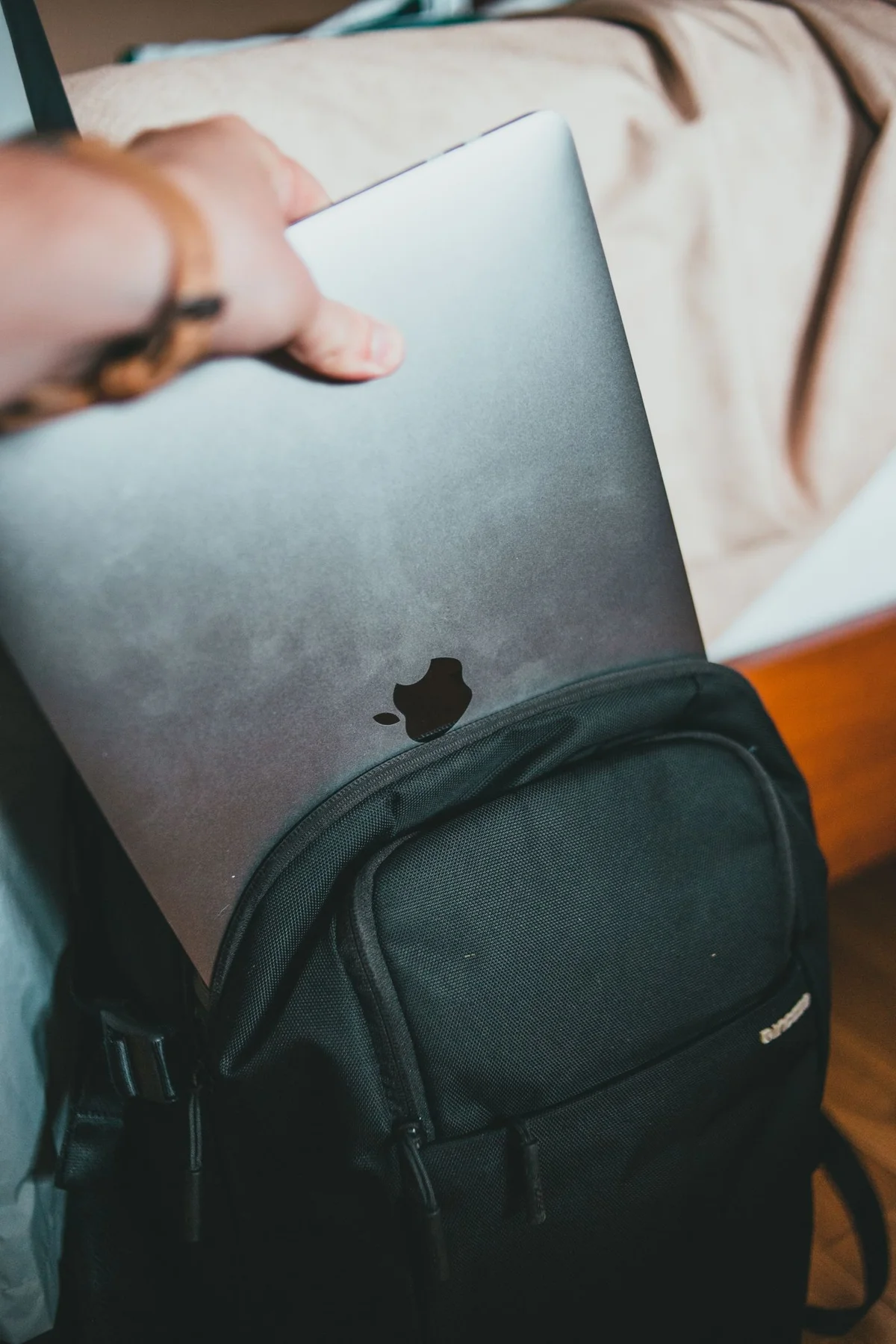
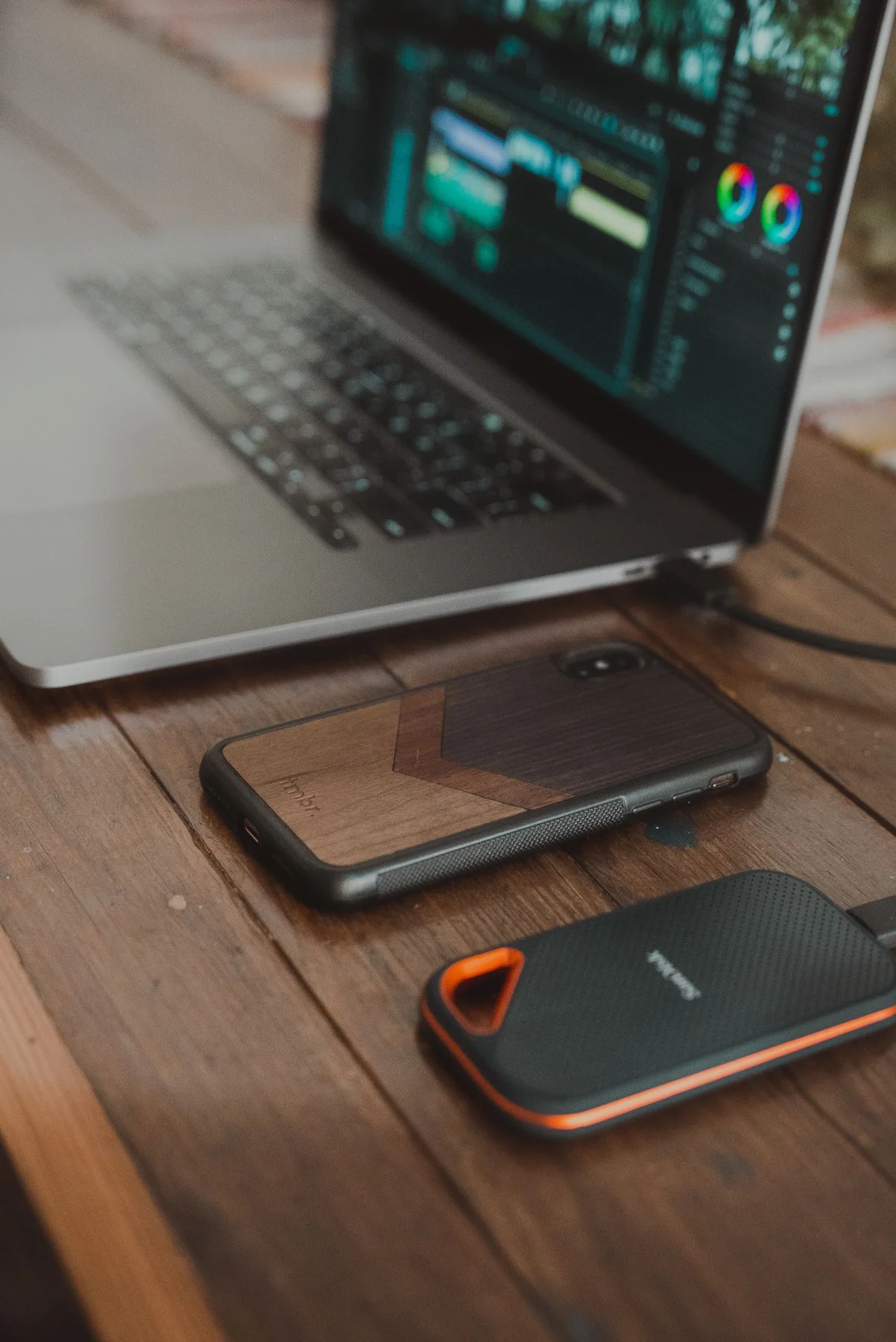
Disconnect external storage using the operating system’s recommended procedure. Let a warm power adapter cool before packing it tightly among delicate items. Finally check the socket, table edge and chair, where leads, receivers and headphones are easily left behind. Giving each item a fixed place in the pouch makes an empty space much easier to notice.
Pack for the actual task and test connections in advance. A small, familiar kit is easier to set up reliably.